Ebla Contract 
Overview
Ebla Contract is a comprehensive contract management extension for EspoCRM that streamlines the entire contract lifecycle from creation to signing. It provides powerful e-signature capabilities, contract tracking, and multi-party signing workflows.
With support for both built-in signing and PandaDoc integration, Ebla Contract offers flexible solutions for businesses of all sizes to digitize their contract processes.
Extension Video
Key Features
- Digital Signature Pad: Advanced signature capture with customizable pen color, dot size, and background settings. Create professional-looking signatures directly in your browser.
- Multi-Party Signing: Support for multiple signers per contract with role-based assignments. Track signing status for each party independently.
- Public Signing Pages: Generate secure public links and QR codes for contract parties to sign documents without needing CRM access. Perfect for external stakeholders.
- Template System: Create contract templates with dynamic placeholders for signatures, dates, names, and party information. Reuse templates across multiple contracts.
- E-Signature Providers: Pluggable provider architecture with built-in Ebla provider and optional PandaDoc integration for advanced features.
- Audit Trail: Comprehensive tracking of signature events including IP address logging, signing timestamps, and status changes for compliance and security.
- Calendar Integration: Contracts appear in the EspoCRM calendar with activity tracking and status-based filtering.
- Document Management: Attach contract documents, generate PDFs from templates, and manage contract versions with full document lifecycle support.
- Contract Types: Pre-configured contract types including Lease Agreement, Sales Agreement, Service Contract, Maintenance Contract, and more. Fully customizable.
- Status Workflow: Automated status transitions from New → Ready for Send → Pending → Completed.
- Resend Signing Link (Per Party):
Easily resend the signing document to individual contract parties directly from the Parties panel using a row action. Ideal for handling missed emails or reminders without regenerating the document.
Use Cases
1. Real Estate Contracts
Manage property lease agreements, sales contracts, and maintenance agreements with multiple parties. Generate QR codes for easy mobile signing during property viewings.
2. Service Agreements
Create and send service contracts to clients with automatic reminders. Track contract renewals and maintain a complete history of all agreements.
3. Employment Contracts
Onboard new employees by sending employment contracts with signature requirements. Capture signatures with IP address logging for compliance.
4. Sales Proposals
Convert opportunities into contracts and send to prospects for digital signature. Track proposal status in real-time.
5. NDA and Legal Agreements
Manage non-disclosure agreements, partnership agreements, and other legal documents with audit trails and secure signing.
Quick Start Guide
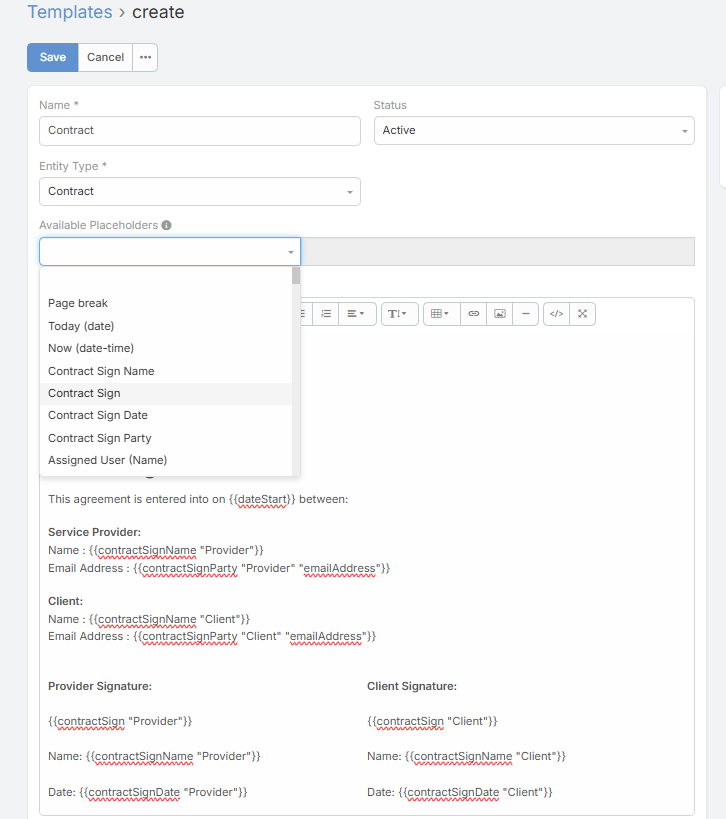
Step 1: Create a Contract Template
- Navigate to Administration → Templates.
- Click Create Template and select EblaContract as the entity type.
- Design your contract using the rich text editor.
- Add template placeholders for dynamic content:
{{contractSign "Signer"}}- Signature placeholder{{contractSignName "Signer"}}- Signer name{{contractSignDate "Signer"}}- Signing date{{contractSignParty "Signer" "Field"}}- Party Filed
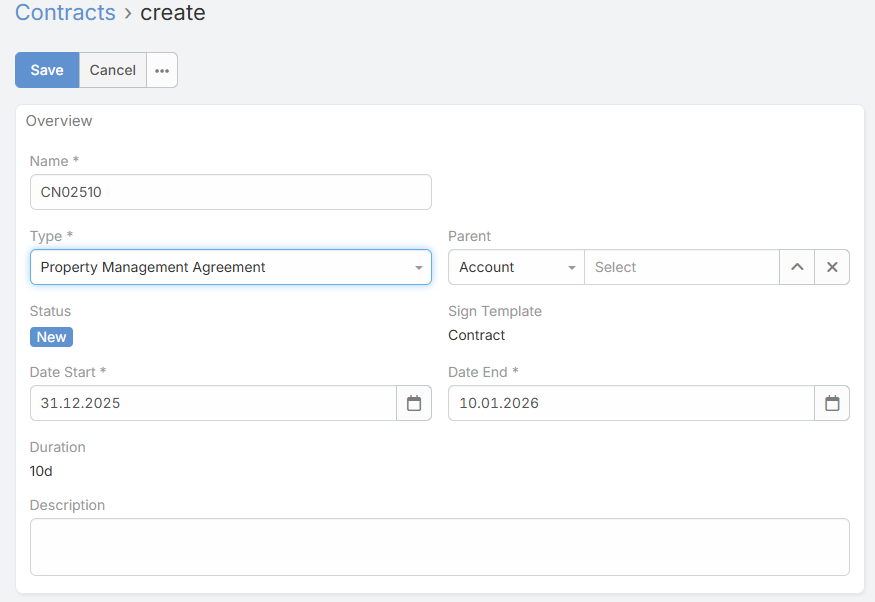
Step 2: Create a Contract
- Navigate to Contracts (or EblaContract in the menu).
- Click Create Contract.
- Fill in the contract details:
- Name: Contract title
- Type: Select contract type (Lease, Sales, Service, etc.)
- Status: Set to "New"
- Date Start/End: Contract period
- Sign Template: Select the template created in Step 1
- Parent: Link to related entity (Account, Opportunity, etc.)
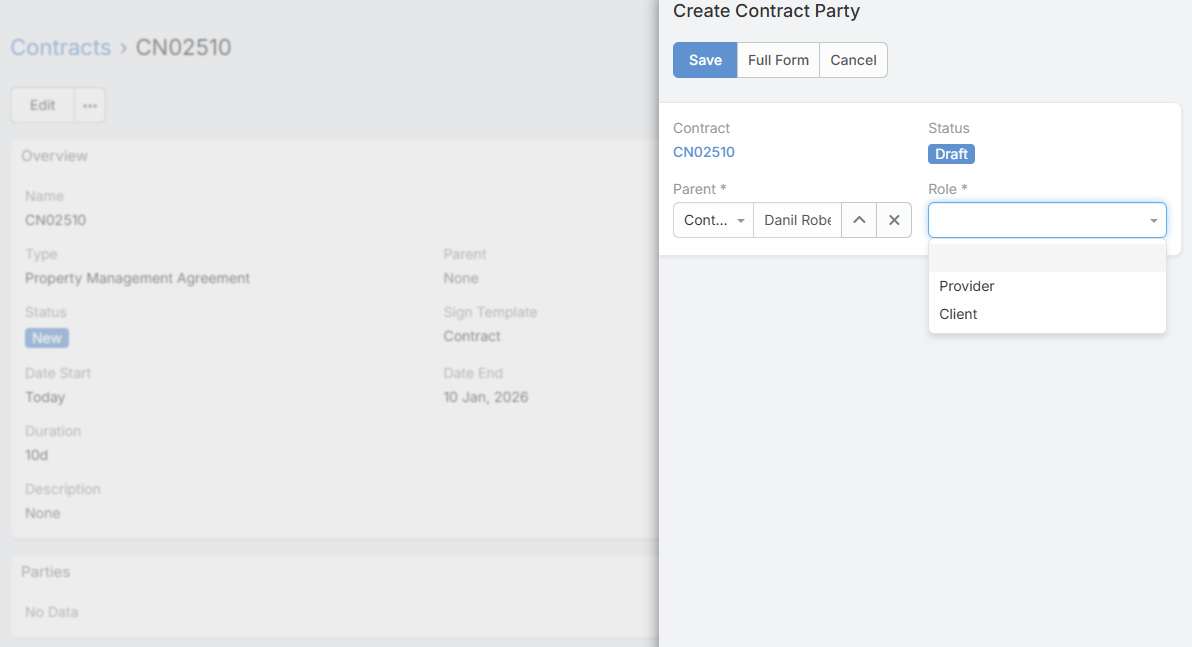
Step 3: Add Contract Parties
- In the Parties panel, click Create to add signers.
- Assign roles (e.g., "Landlord", "Tenant", "Client", "Vendor").
- Link each party to a Contact, Lead, or User.
- Save the party record.
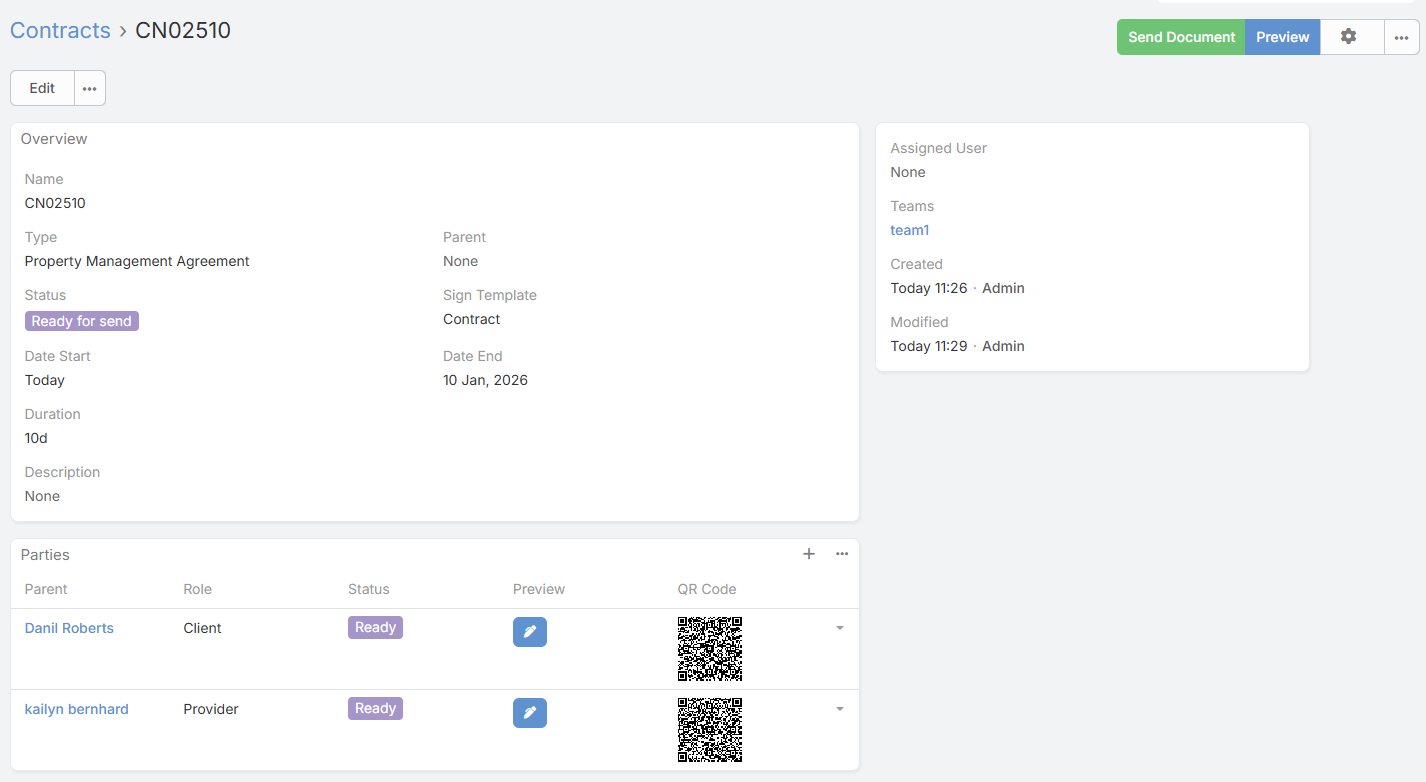
Step 4: Create and Send Document
- On the contract detail view, click Create Document.
- The system generates the document from your template.
- Preview the document to verify all placeholders are filled.
- Click Send Document to distribute signing links to all parties.
Step 5: Sign the Contract
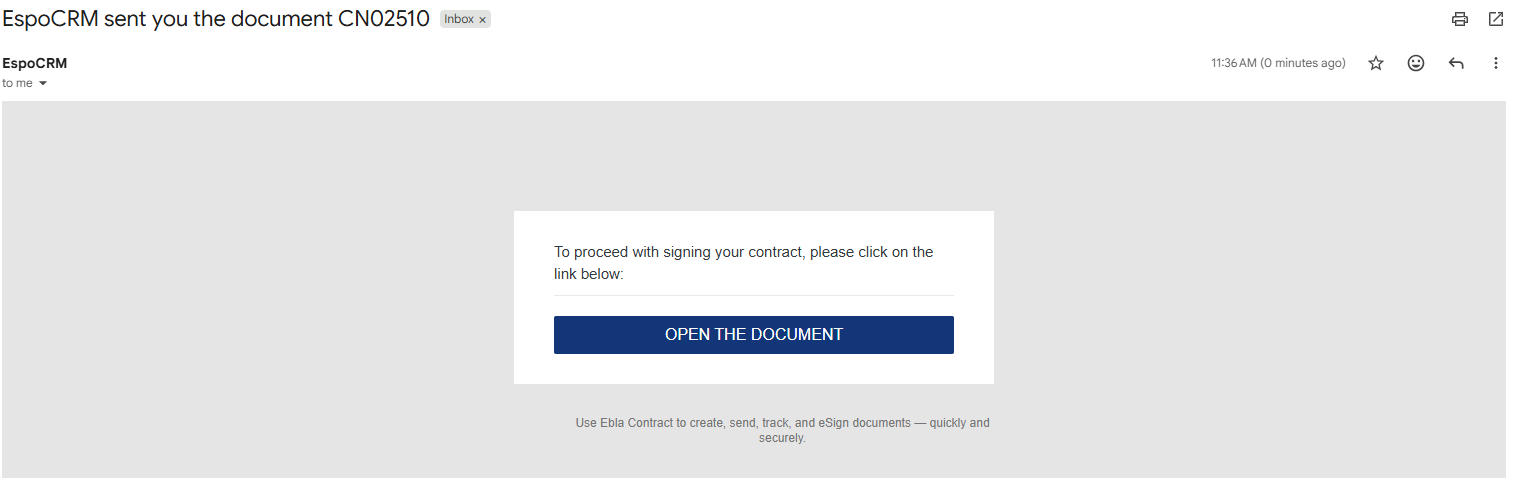
- Parties receive an email with a unique signing link or QR code.
- They open the link (no login required).
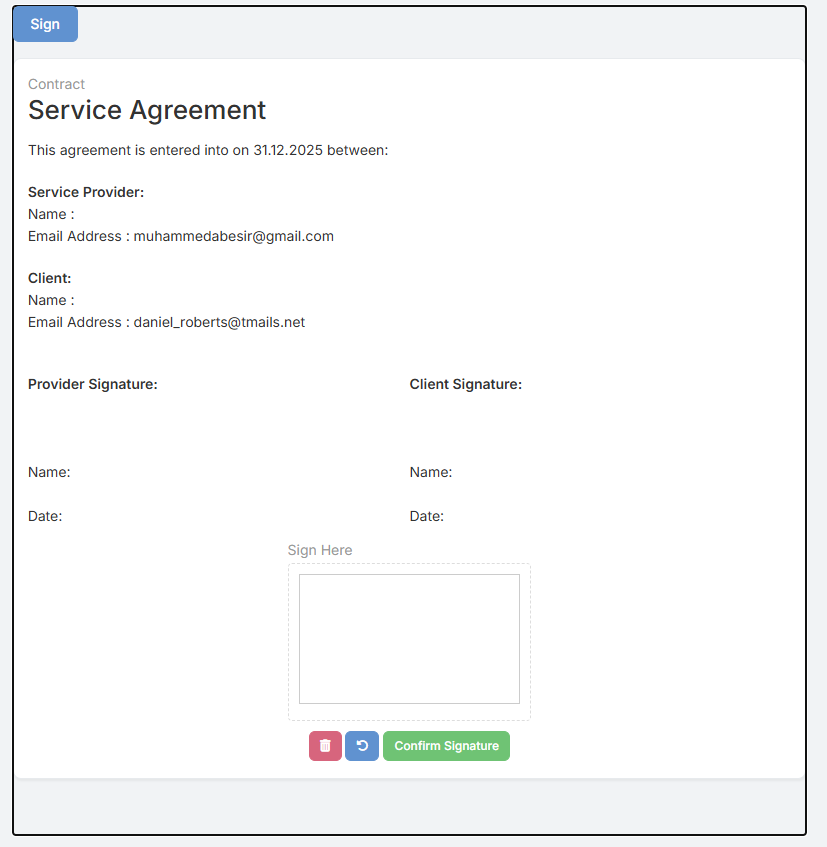
- Review the contract and use the signature pad to sign.
- System captures IP address and timestamp automatically.
Configuration
General Settings
Navigate to Administration → Settings → Contract Settings.
Default E-Signature Provider
Options:
- Ebla - Built-in signature provider (no external dependencies - default)
- PandaDoc - Integration with PandaDoc service (requires separate extension)
Template Helpers
Template helpers allow you to embed dynamic contract data and signatures into PDF documents.
Available Helpers
1. Signature Image
Embeds the signature as an inline image in the document.
Syntax:
{{signatureImage sign width="200" height="100"}}
Parameters:
- sign - The signature field name
- width - Image width in pixels
- height - Image height in pixels
Example:
Signature: {{signatureImage contractParty.sign width="250" height="80"}}
2. Contract Sign
Displays the signature pad for a specific role.
Syntax:
{{contractSign "Signer"}}
Parameters:
- role - The party role (must match a role in contract parties)
Example:
Landlord Signature: {{contractSign "Landlord"}}
Tenant Signature: {{contractSign "Tenant"}}
3. Contract Sign Name
Displays the name of the party for a specific role.
Syntax:
{{contractSignName "Signer"}}
Example:
Signed by: {{contractSignName "Client"}}
4. Contract Sign Date
Displays the date when the contract was signed for a specific role.
Syntax:
{{contractSignDate "Signer"}}
Example:
Date Signed: {{contractSignDate "Vendor"}}
5. Contract Sign Party
Displays any party field.
Syntax:
{{contractSignParty "Signer" "fieldName"}}
Example Template:
<h2>Service Agreement</h2>

<p>This agreement is entered into on {{dateStart}} between:</p>

<div style="margin: 20px 0;">
  <strong>Service Provider:</strong><br>
    Name : {{contractSignName "Provider"}}
    Email Address : {{contractSignParty "Provider" "emailAddress"}}
</div>

<div style="margin: 20px 0;">
  <strong>Client:</strong><br>
    Name : {{contractSignName "Client"}}
    Email Address : {{contractSignParty "Client" "emailAddress"}}
</div>

<div style="margin-top: 40px;">
  <table width="100%">
    <tr>
      <td width="50%">
        <strong>Provider Signature:</strong><br>
        {{contractSign "Provider"}}<br>
        Name: {{contractSignName "Provider"}}<br>
        Date: {{contractSignDate "Provider"}}
      </td>
      <td width="50%">
        <strong>Client Signature:</strong><br>
        {{contractSign "Client"}}<br>
        Name: {{contractSignName "Client"}}<br>
        Date: {{contractSignDate "Client"}}
      </td>
    </tr>
  </table>
</div>
Contract Workflow
Contract Statuses
The contract lifecycle follows these statuses:
- New: Initial state when a contract is created
- Ready for Send: Document created from a template and ready for distribution
- Pending: Document sent to parties, awaiting signatures
- Completed: All parties have signed the contract
- Canceled: Contract was canceled before completion
Party Statuses
Contract parties progress through these statuses:
- Draft: Party added but a document not created
- Sent: A signing link sent to party
- Signed: Party completed signature
PandaDoc Integration
Overview
The PandaDoc provider (available as separate extension Ebla PandaDoc) enables advanced e-signature features through PandaDoc's platform.
Features
- OAuth 2.0 authentication with automatic token refresh
- Template synchronization from PandaDoc workspace
- Role mapping between EspoCRM and PandaDoc
- Document creation in PandaDoc from EspoCRM templates
- Webhook support for real-time status updates
- Embedded PandaDoc editor
- QR code generation with PandaDoc signing links
Installation
- Install Ebla Contract extension first
- Install Ebla PandaDoc extension
- Navigate to Administration → Integrations → PandaDoc
- Configure OAuth credentials:
- Client ID: From PandaDoc developer portal
- Client Secret: From PandaDoc developer portal
- Callback URL: Automatically populated
- Click Connect to authorize
- Set Default Contracts Provider to "PandaDoc" in settings
Webhook Configuration
Configure webhooks in PandaDoc dashboard to receive real-time updates:
Webhook URL:
https://your-crm.com/api/v1/ESign/webhook/PandaDoc
Events to Subscribe:
- document_state_changed
- recipient_completed
- document_completed
Support and Feedback
For any inquiries, support, or feedback regarding the Ebla Contract extension, please reach out through our portal and create a ticket. We are committed to ensuring a seamless experience and are here to assist you with any questions or concerns.
Support Portal: https://portal.eblasoft.com.tr