Ebla Open Street Map 
Overview
Ebla Open Street Map enables OpenStreetMap integration as a free, open-source alternative to Google Maps in EspoCRM. Built on Leaflet.js, this extension provides advanced mapping features including polygon drawing, draggable markers, automatic geocoding, and map-based list views.
Unlike Google Maps which requires API keys and has usage limits, OpenStreetMap is completely free and open-source, making it ideal for organizations that need unlimited mapping without licensing costs.
Extension Video
Key Features
- OpenStreetMap Integration: Complete replacement for Google Maps using Leaflet.js library, no API key required.
- Automatic Geocoding: Auto-fetch latitude/longitude from addresses using free Nominatim API on record save.
- Polygon Drawing: Draw and customize polygons on maps for highlighting areas, territories, or zones with customizable colors and opacity.
- Draggable Markers: Drag markers on map to update location coordinates instantly without typing.
- Map List View: Display entity records as interactive markers on a map with click-to-navigate and hover popups.
- Custom Styling: Configure map appearance with customizable stroke weight, colors, and fill opacity for polygons.
Configuration
Setting Default Map Provider
After installation, configure OpenStreetMap as your default map provider:
- Navigate to Administration → Ebla Map Plus Settings
- Under Map Provider, select OpenStreetMap
- Click Save
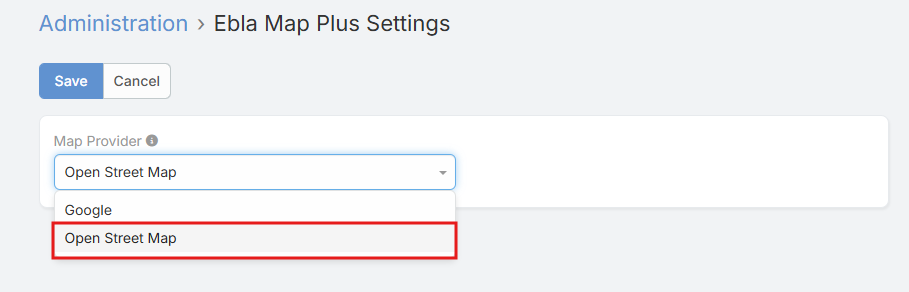
All address fields will now use OpenStreetMap instead of Google Maps.
Enable Map List View for Entities
To display entity records on a map:
- Navigate to Administration → Entity Manager
- Select your entity (e.g., Account, Contact, Lead)
- Enable Map List View
- Select Map Address Field (which address field to use for markers)
- Select Map Layout (which layout to use for list display)
- Click Save
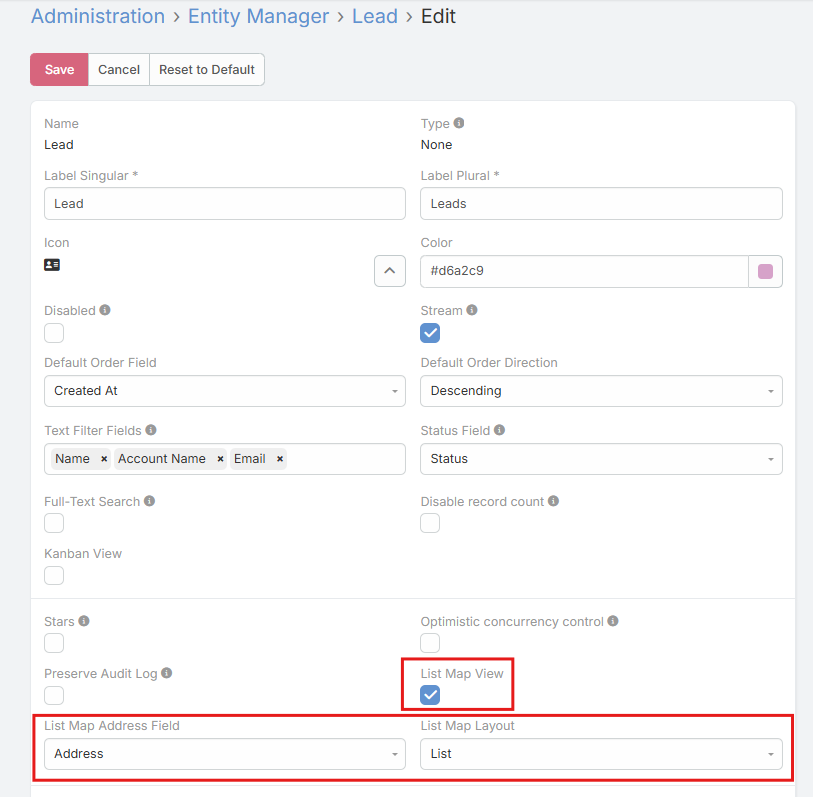
Users can now toggle to Map View when viewing the entity list.
Configure Map Field Parameters
When editing a Map field in Field Manager:
Basic Options:
- Marker Draggable: Allow dragging marker to update coordinates (default: false)
- Enable Polygon: Allow drawing polygons on map (default: false)
Polygon Styling (when polygons enabled):
- Stroke Weight: Border thickness in pixels (e.g., 3)
- Stroke Color: Border color (color picker)
- Fill Color: Interior color (color picker)
- Fill Opacity: Transparency from 0.0 (transparent) to 1.0 (opaque)
Usage
Viewing a Map
When viewing a record with an address field:
- The address displays with an embedded OpenStreetMap
- A marker shows the geocoded location
- Previously saved polygons (if any) are displayed
- Map includes OpenStreetMap attribution
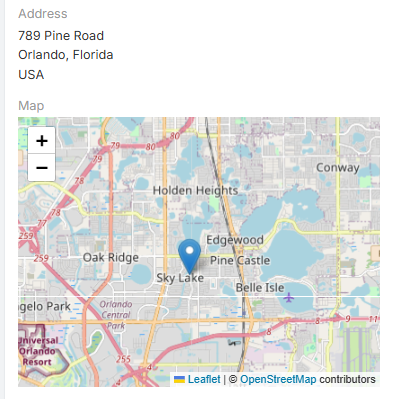
Automatic Geocoding
When creating or editing records with addresses:
- Fill in address fields (Country, City, State, Street)
- Click Save
- The extension automatically:
- Calls Nominatim API with the full address
- Populates latitude and longitude fields
- Stores full geocoding data for reference
Geocoding Behavior
Geocoding only triggers when address fields are modified. No API calls are made for unchanged addresses.
Drawing Polygons
If polygon drawing is enabled on the map field:
- Enter Edit mode on the record
- Click the Polygon tool in the map toolbar (bottom-left)
- Click points on the map to define polygon corners
- Double-click to complete the polygon
- The polygon appears with your configured colors and opacity
- Click Save to persist the polygon data
To delete polygons:
- Enter Edit mode
- Click the Delete tool (trash icon)
- Click on the polygon to remove
- Click Save
Dragging Markers
If marker dragging is enabled:
- Enter Edit mode on the record
- Click and drag the marker to a new location
- Latitude and longitude fields update automatically
- Click Save to persist the new coordinates
Using Map List View
If map list view is enabled for an entity:
- Navigate to the entity list (e.g., Leads)
- Toggle view mode to Map (icon in top-right)
- All records with valid coordinates appear as markers
- Hover over a marker to see the record name
- Click a marker to navigate to that record's detail view
- Map auto-zooms to fit all visible markers
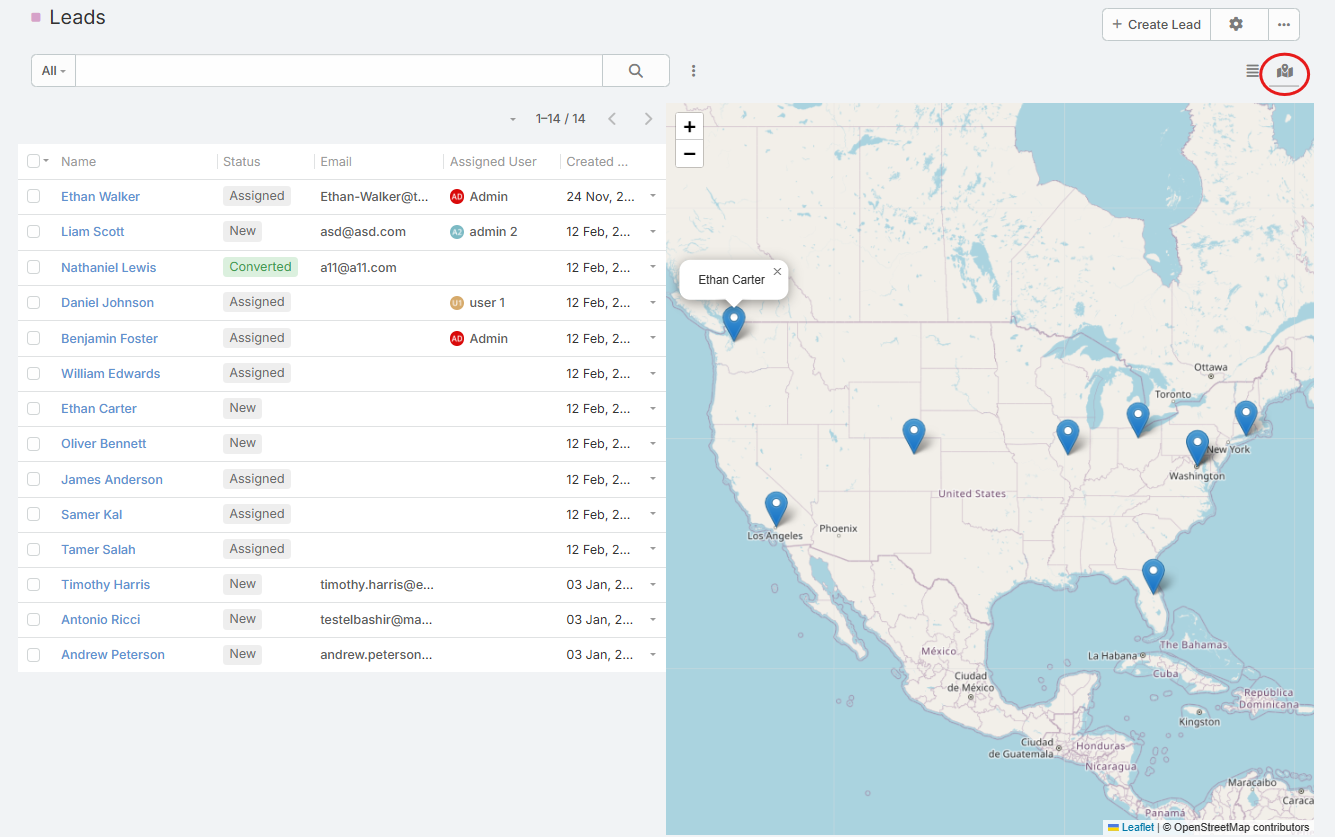
Comparison: Google Maps vs OpenStreetMap
| Feature | Google Maps | OpenStreetMap |
|---|---|---|
| Cost | Requires API key, usage limits | Free, no API key |
| Geocoding | Google Geocoding API | Nominatim API |
| Map Tiles | OSM contributors | |
| Polygon Drawing | Yes | Yes |
| Marker Dragging | No | Yes |
| Map List View | Yes | Yes |
| Privacy | Data sent to Google | Data sent to OSM |
| Customization | Limited | Fully customizable (open-source) |
| Global Coverage | Excellent | Excellent |
Support and Feedback
For inquiries, support, or feedback regarding Ebla Open Street Map, please contact us through our portal or create a support ticket. We're committed to ensuring a seamless experience and are here to assist you.