Rate Star Field 
Adding new field type Rate Field, to allow EspoCRM users easily seat and read rates, is available in Ebla Rate.
Overview
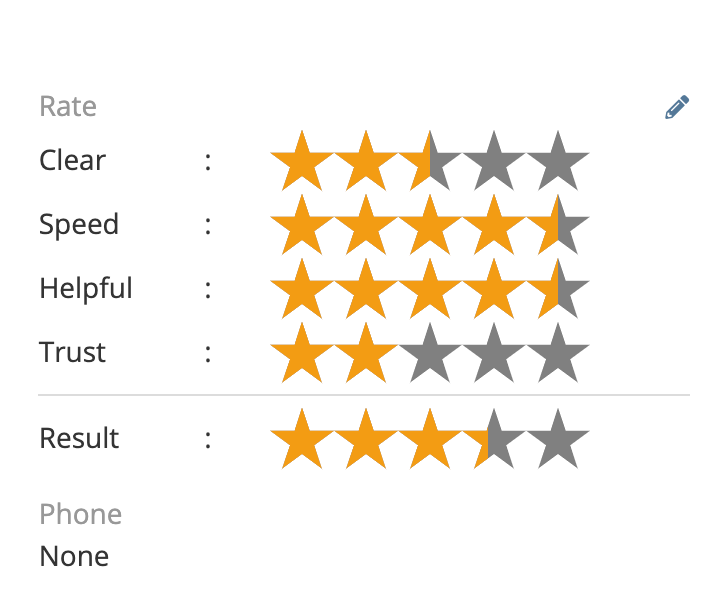
Ebla Rate extension adds a new field type Rate to EspoCRM field manager, allowing users to rate records based on single or multiple criteria.
Can be added directly to target records such as Accounts, Contacts, Leads, Opportunities, or any custom entity.
You also can create a new custom entity specifically for ratings and link it to other entities.
It is ideal for scenarios like customer satisfaction surveys, product reviews, service quality assessments, and performance evaluations.
In database, the ratings are stored as JSON objects and result as float values representing the average score.
Options & Features
- Star Rating: Interactive star rating interface.
- Multiple Criteria: Define custom criteria (e.g., Quality, Service, Price) for granular ratings.
- Weighted Average: Automatically calculates and displays the average rating across all criteria.
- Visual Customization: * Configurable star colors. * Adjustable star widths for different views (List, Detail, Edit). * Color mapping to change star colors based on score thresholds.
- Display Modes: * Standard: Shows all criteria and average. * One Option: Simplified mode acting as a single rating value. * Read-Only One Star: Compact display showing a single star icon in read mode.
- Inline Editing: Support for fast inline editing in list and detail views.
Configuration
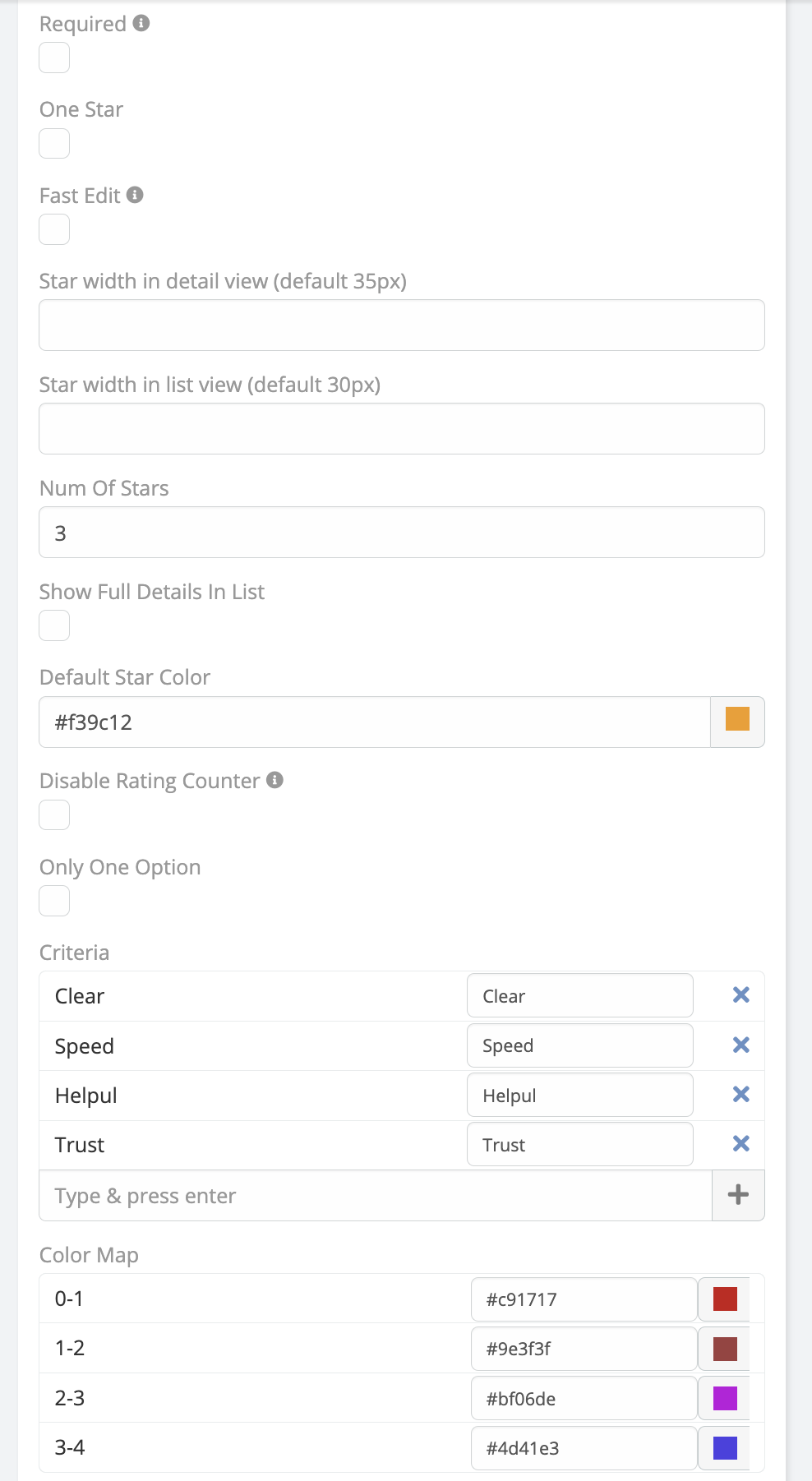
After installation, you can configure the Rate field in the Entity Manager.
Field Parameters
- Required: Make the rating mandatory.
- Number of Stars: Set the scale (default is 5, max 30).
- Criteria: Add multiple rating criteria.
- Star Color: Set the default color for stars.
- Color Map: Define specific colors for different rating values (e.g., 1-2 stars: Red, 4-5 stars: Green).
- One Option: Treat as a single value field instead of multi-criteria.
- Fast Edit: Enable/Disable inline editing.
- Ignore Empty Criteria: If checked, unrated criteria won't affect the average calculation.
- Disable Rating Counter: Hide the numerical counter.
Installation
- Navigate to Administration > Extensions.
- Upload the extension package.
- Install and rebuild the system.
Usage
- Go to Administration > Entity Manager.
- Select the entity you want to add a rating to (e.g., Account, Contact).
- Create a new field of type Rate.
- Configure the criteria and display options.
- Add the field to your layouts.
Copyright (c) Eblasoft Bilişim Ltd.