Encrypted Fields 
Overview
Encrypted Fields adds an Encrypted field type to EspoCRM for storing sensitive text safely.
It is designed for values that should not appear in normal record views, API reads, or standard exports.
By default:
- users can set or change the value,
- the value is shown as masked in the interface,
- normal record reads do not reveal plaintext,
- standard export does not include the encrypted value.
What This Extension Helps With
Use Encrypted Fields when you need to store information such as:
- API keys,
- passwords or access tokens,
- secure internal notes,
- private identifiers,
- any other text that should stay hidden in normal day-to-day use.
Installation
- Obtain the extension package from the Eblasoft customer portal.
- Go to Administration → Extensions.
- Upload and install the package.
- Rebuild the application after installation.
Administration Setup
After installation, open:
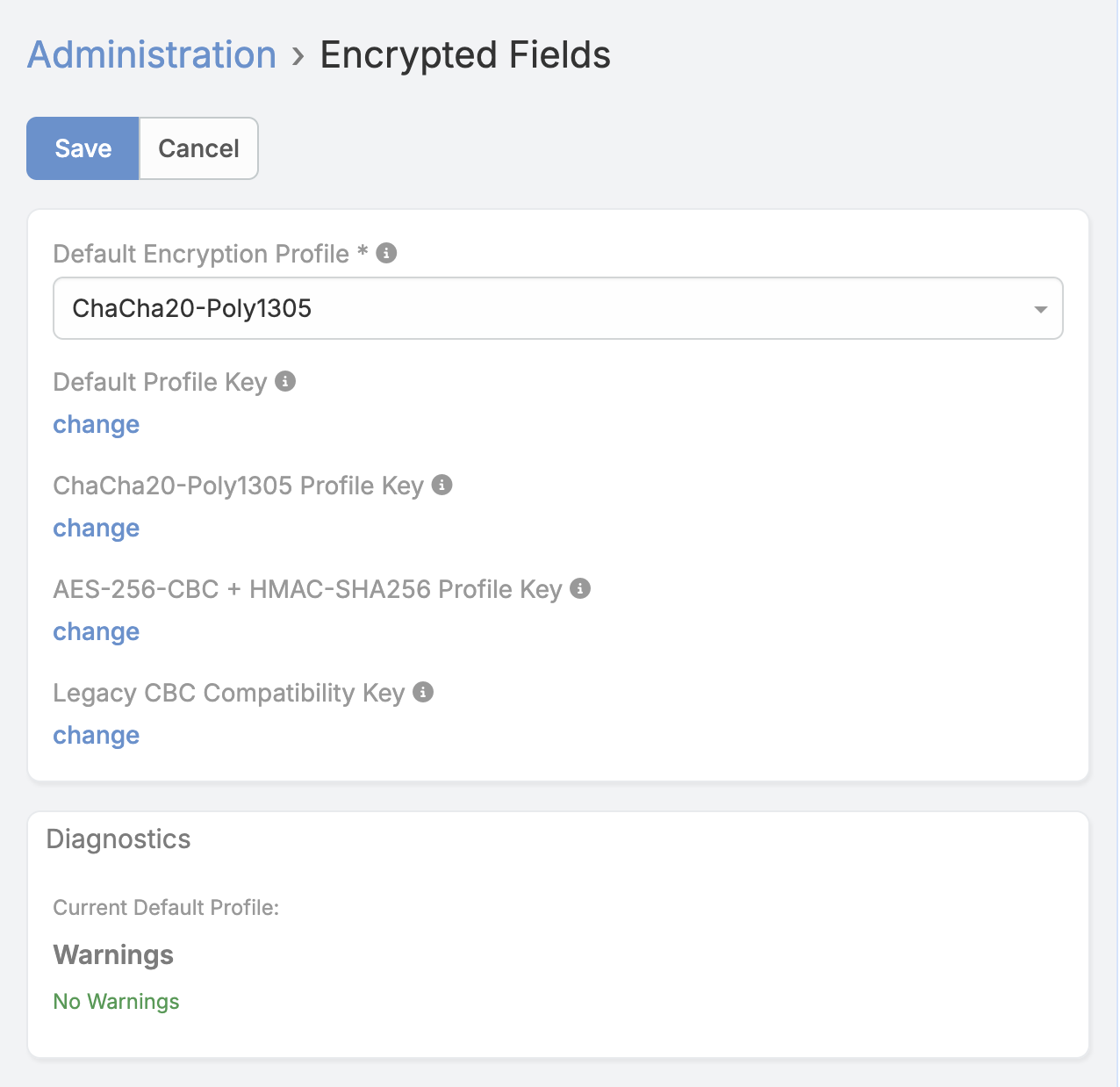
Administration → Encrypted Fields
Default Encryption Profile
This is the default encryption option used when a field does not choose a specific profile.
In most cases, you only need to choose the default once and keep using it.
Encryption Keys
The extension manages encryption keys from the same administration page.
Each available encryption profile has its own key field.
Warning
Changing an existing key without a controlled migration can make previously saved values unreadable.
Diagnostics Panel
The administration page includes a diagnostics panel to help administrators confirm that each encryption profile is ready to use.
It shows:
- whether a profile is ready,
- whether its key is available,
- whether it can be used for encryption and decryption,
- any warnings that require administrator attention.
Creating an Encrypted Field
- Navigate to Administration → Entity Manager.
- Open the target entity.
- Go to Fields.
- Create a field with type Encrypted.
- Configure the options you need.
Field Options
Required
Makes the field mandatory.
Encryption Profile
Optional.
- Leave it empty to use the default encryption profile.
- Choose a specific profile only when that field needs a different encryption setup.
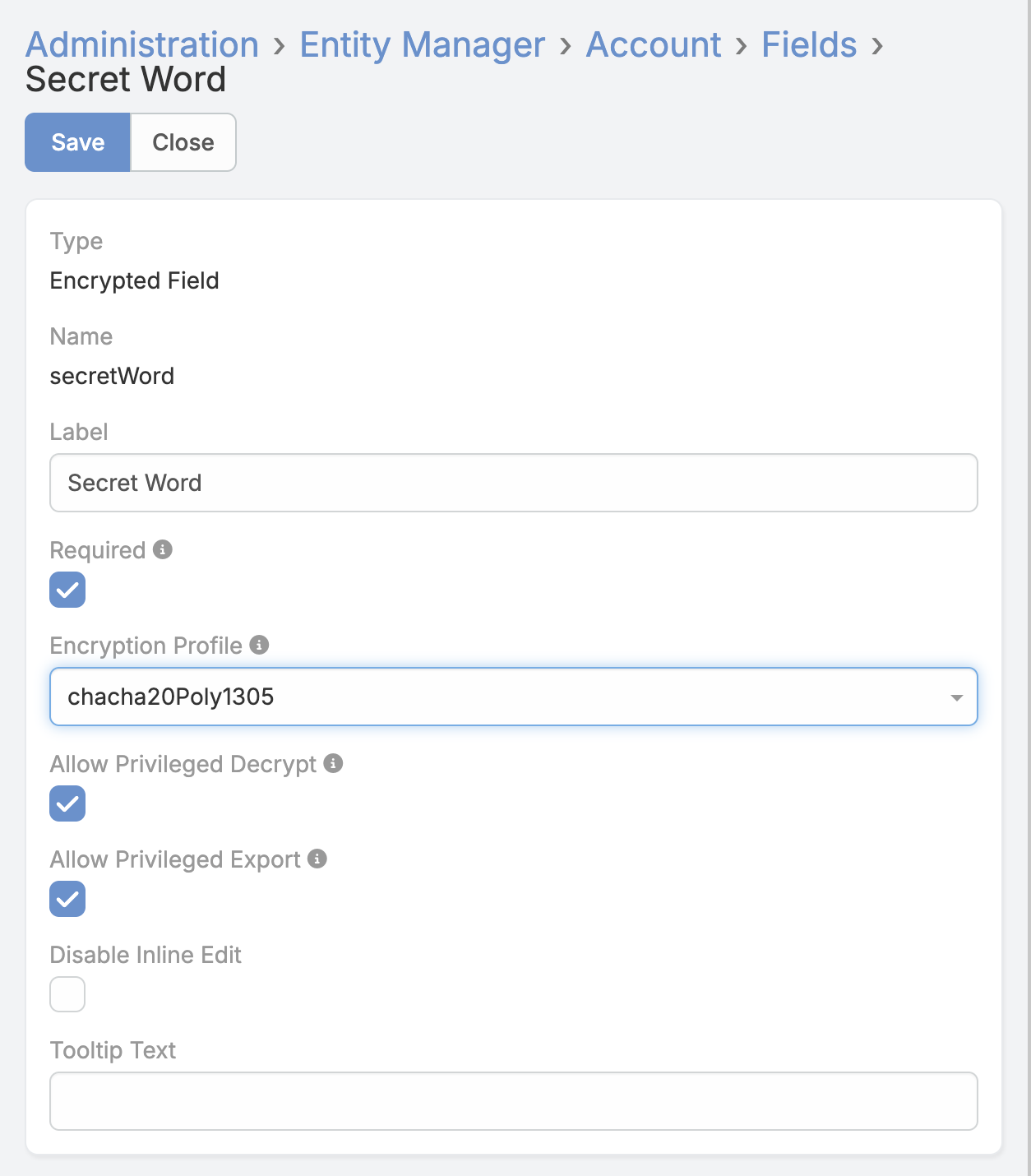
Allow Privileged Decrypt
When enabled, authorized users can click Decrypt on the record detail view.
Allow Privileged Export
When enabled, authorized users can export the field value using the dedicated privileged export action.
How It Works for Users
Detail View
- Encrypted values are shown as masked.
- If allowed, users see a Decrypt link.
- If allowed, users also see an Export link for that field.
Edit View
- Existing values stay hidden.
- Users can set a new value or replace the current one.
List View
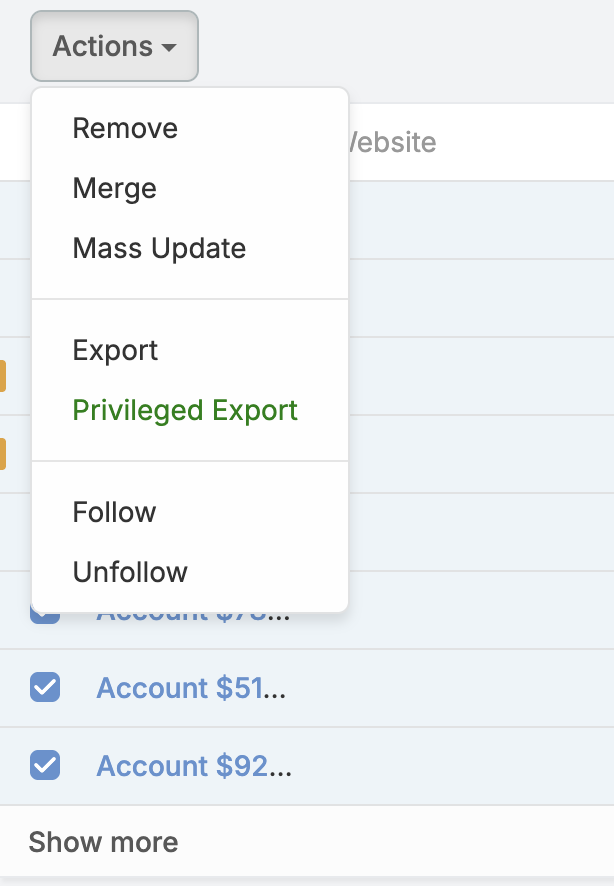
- Users with the correct permission see a Privileged Export mass action.
- This action can export decrypted values only for fields that explicitly allow it.
Permissions
Privileged Decrypt
To use Decrypt, all of the following must be true:
- The field is an Encrypted field.
- Allow Privileged Decrypt is enabled for that field.
- The user has Encrypted Field Decrypt Permission in their role.
- The user has read access to the record.
- The user has read access to the field.
Privileged Export
To use privileged export, all of the following must be true:
- The user has normal EspoCRM export permission.
- The user has Encrypted Field Export Permission in their role.
- The user can read the target records.
- The user can read the target field.
- Allow Privileged Export is enabled for that field.
Important Notes
- Normal export does not reveal encrypted values.
- Normal record reads do not reveal plaintext values.
- Decrypt and export access are always controlled by role permission and field settings.
- If you plan to change encryption keys, do so carefully and with a migration plan.