Mobile App 
Overview
Ebla Mobile App adds three major capabilities to EspoCRM:
- an installable Progressive Web App (PWA) experience for mobile and desktop browsers,
- push notifications through WebPush,
- Telegram notifications through a Telegram bot integration.
The extension is designed so that administrators define the global defaults in Administration → Mobile App, while each user can fine-tune delivery behavior in Notification Preferences.
What the extension covers
PWA experience
- Install EspoCRM from a supported browser to a phone, tablet, or desktop.
- Configure application name, description, colors, orientation, display mode, and logos.
- Add Quick Create shortcuts to the installed app menu.
- Review a built-in requirements checklist before asking users to install the app.
See: PWA guide
Notification providers
The current module supports these providers:
The available providers come from the installed module itself. Customer-facing documentation only lists providers that are implemented in this release.
User-level control
Users can open Notification Preferences to:
- keep the system default provider,
- switch to another supported provider,
- manage WebPush subscriptions per browser/device,
- store their Telegram chat ID for Telegram delivery.
Reminder notifications
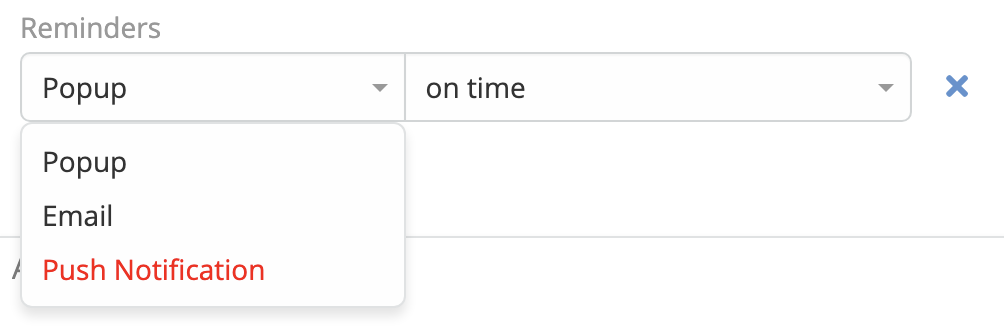
The extension also supports notification reminders. If reminders are configured to use the notification channel, they are delivered through the active provider for that user.
Where to configure the module
1. Administration → Mobile App
This is the main page for global defaults.
Notification settings
| Setting | What it does |
|---|---|
| Default Notification Provider | Sets the provider used by default for users who do not choose their own provider in Notification Preferences. |
| Open Integration | Opens the selected provider's integration record directly from the settings page. |
| Notification Title | Used for WebPush notifications. Supports placeholders such as {entity}, {entityType}, and {action}. |
| Notification Icon | Optional image used for WebPush notifications. |
| Notification Badge | Optional badge image used for WebPush notifications. |
The notification title, icon, and badge are only relevant when the active provider is WebPush.
Mobile App settings
| Setting | What it does |
|---|---|
| PWA Application Name | Display name shown by the installed app and manifest. |
| PWA Application Description | Description stored in the manifest. |
| PWA Theme Color | Used by browsers for UI coloring such as splash or app chrome behavior. |
| PWA Background Color | Background color used by supported install experiences. |
| PWA Orientation | Controls preferred orientation for the installed app. |
| PWA Display | Chooses the display mode: fullscreen, standalone, minimal-ui, or browser. |
| PWA Logo 196 | Icon used for smaller install surfaces. |
| PWA Logo 512 | Icon used for larger install surfaces. |
| PWA Quick Create List | Creates install shortcuts that open record creation screens directly from the app. |
The page also includes a Requirements for Mobile App side panel to help you check whether your current site and browser setup are install-ready.
2. Administration → Integrations
Use this area to enable and configure the provider itself:
- Web Push stores the VAPID public and private keys.
- Telegram stores the bot token and bot URL.
3. User Menu / Notification Preferences
This page controls the delivery method for an individual user.
| User option | What it does |
|---|---|
| Default Notification Provider | Overrides the global provider for that user. Leaving it blank means “use the system default”. |
| Push Notification Subscriptions | Shows the saved WebPush subscriptions for that user and lets them subscribe or unsubscribe. |
| Telegram Chat ID | Required when the user wants Telegram delivery. |
| Telegram Bot URL | Read-only helper field showing the configured bot URL from the Telegram integration. |
How delivery works for users
WebPush
- Users can subscribe from the navbar dropdown or from Notification Preferences.
- Each browser or device creates its own subscription entry.
- When a push notification is opened, the user is taken to the related record when a related link is available.
- Supported notifications can also mark themselves as read from the notification action.
See: WebPush guide
Telegram
- Users need a valid Telegram Chat ID.
- The Telegram bot must already be enabled by the administrator.
- Once configured, notifications are delivered to the user's Telegram chat.
See: Telegram guide
Typical setup order
- Configure the PWA branding in Administration → Mobile App.
- Enable and configure either Web Push or Telegram in Administration → Integrations.
- Set the Default Notification Provider in Administration → Mobile App.
- Ask users to open Notification Preferences and complete any user-specific fields.
- If you use reminder notifications, confirm your scheduled jobs are running normally.