WebPush Notifications
Use WebPush when you want users to receive browser notifications from EspoCRM on supported desktop and mobile browsers.
This provider works with the module's PWA features, but users can also receive browser notifications without installing the app as a PWA if their browser supports the required APIs.
Before you start
WebPush works best when all of the following are true:
- your CRM is served over HTTPS,
- the browser supports service workers,
- the browser supports push notifications,
- the Web Push integration is enabled,
- valid VAPID keys are stored in the integration,
- WebPush is selected in Administration → Mobile App as the active default provider for browser subscription setup.
If one of these is missing, users may not be able to subscribe successfully.
Admin setup
Step 1: Configure the Web Push integration
Open Administration → Integrations → Web Push.
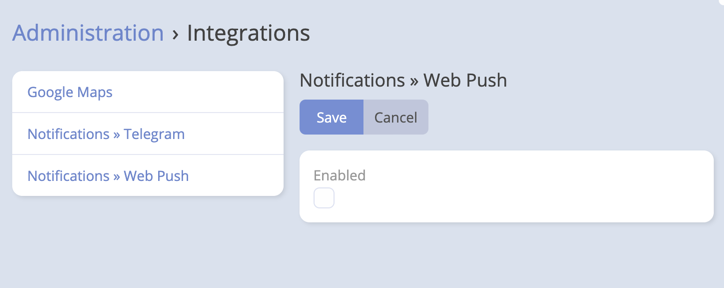
This integration stores:
- Public Key
- Private Key
If you do not already have VAPID keys, use the built-in Generate button.
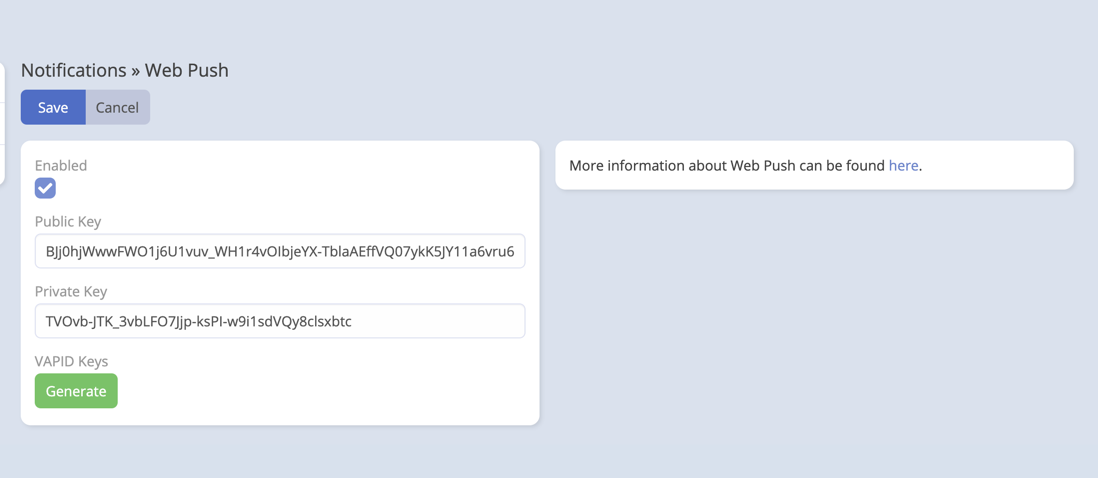
Then enable the integration and save it.
Step 2: Select WebPush in Mobile App settings
Open Administration → Mobile App.
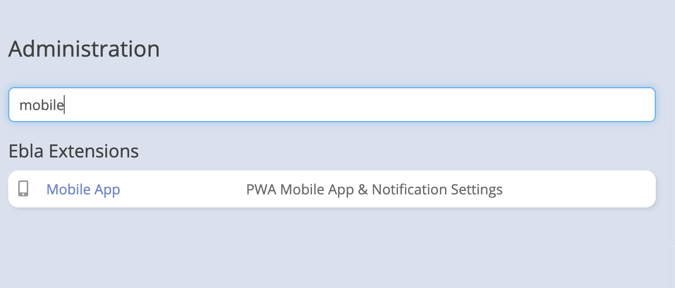
Set Default Notification Provider to WebPush.
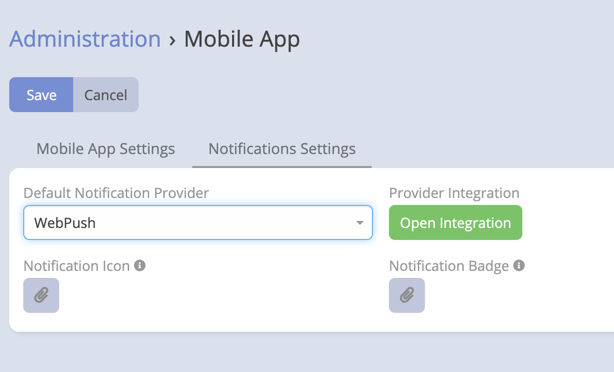
Step 3: Optional WebPush presentation settings
While WebPush is the selected provider, you can also define:
- Notification Title
- Notification Icon
- Notification Badge
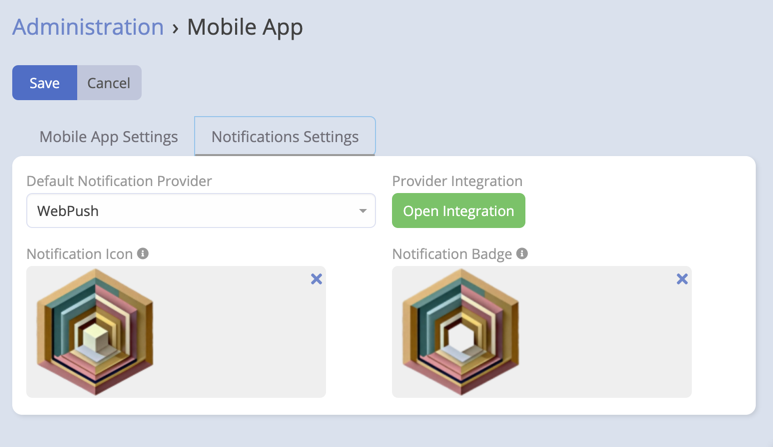
The title supports placeholders such as:
{entity}{entityType}{action}
These values are filled from the notification being sent.
User setup
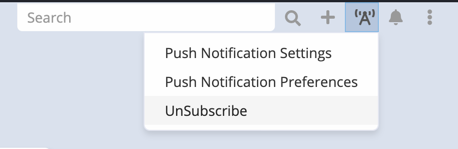
Users can subscribe in two places:
- from the navbar notification dropdown,
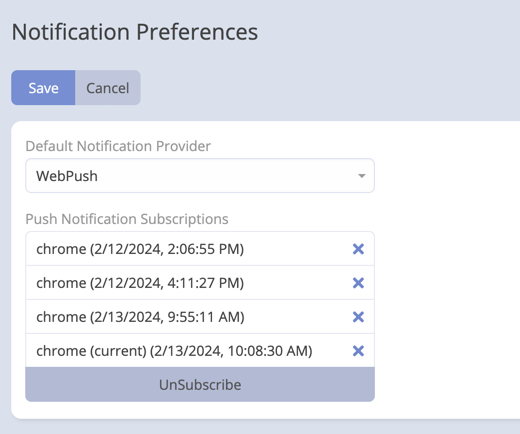
- from Notification Preferences.
What users should know
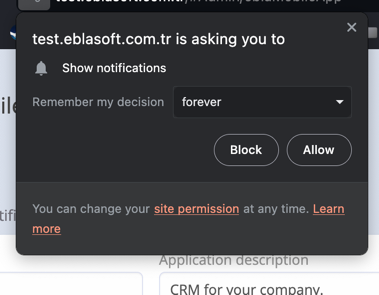
- The browser will ask for notification permission.
- Each browser or device creates its own saved subscription.
- A user can keep their Default Notification Provider blank to inherit the system default.
- The saved subscriptions list is user-specific.
For the smoothest setup, enable WebPush as the main Mobile App default before asking users to subscribe browsers.
The module can also label the current browser subscription separately in the user's subscription list.
What happens when a push notification arrives
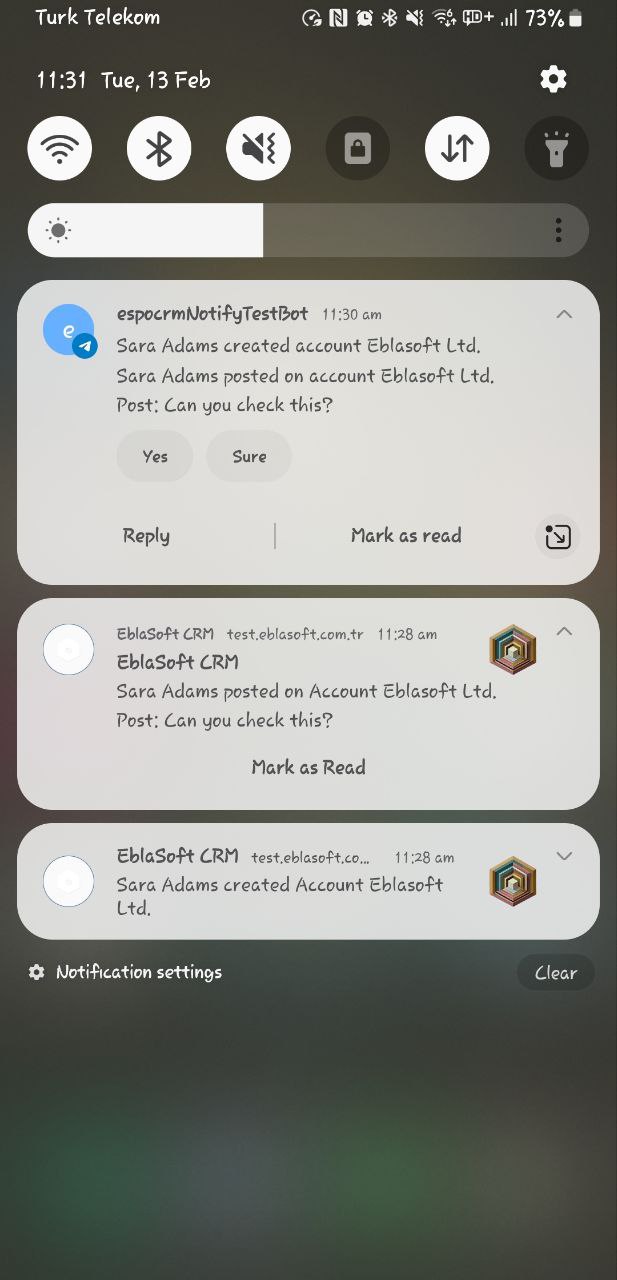
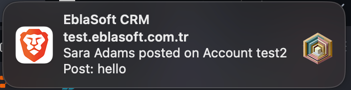
- The browser shows the notification with the configured title, icon, and badge when available.
- Opening the notification can take the user directly to the related record.
- Some notifications also include a Mark as Read action.
- Reminder notifications can use the same provider when reminders are configured to use the notification channel.
Troubleshooting
Users cannot subscribe
Check these first:
- the site is loaded over HTTPS,
- Web Push integration is enabled,
- the VAPID keys are filled in,
- WebPush is selected as the active provider,
- the browser has not blocked notification permission.
Notifications are not arriving
- Ask the user to verify they are subscribed in Notification Preferences.
- Re-check the provider selection in both Administration and the user's own preferences.
- Review the server logs for push delivery errors.
- If a browser subscription has expired, ask the user to subscribe again.
The install checklist fails
See the main PWA guide and verify the failed item from the checklist panel.