Dash Pro 
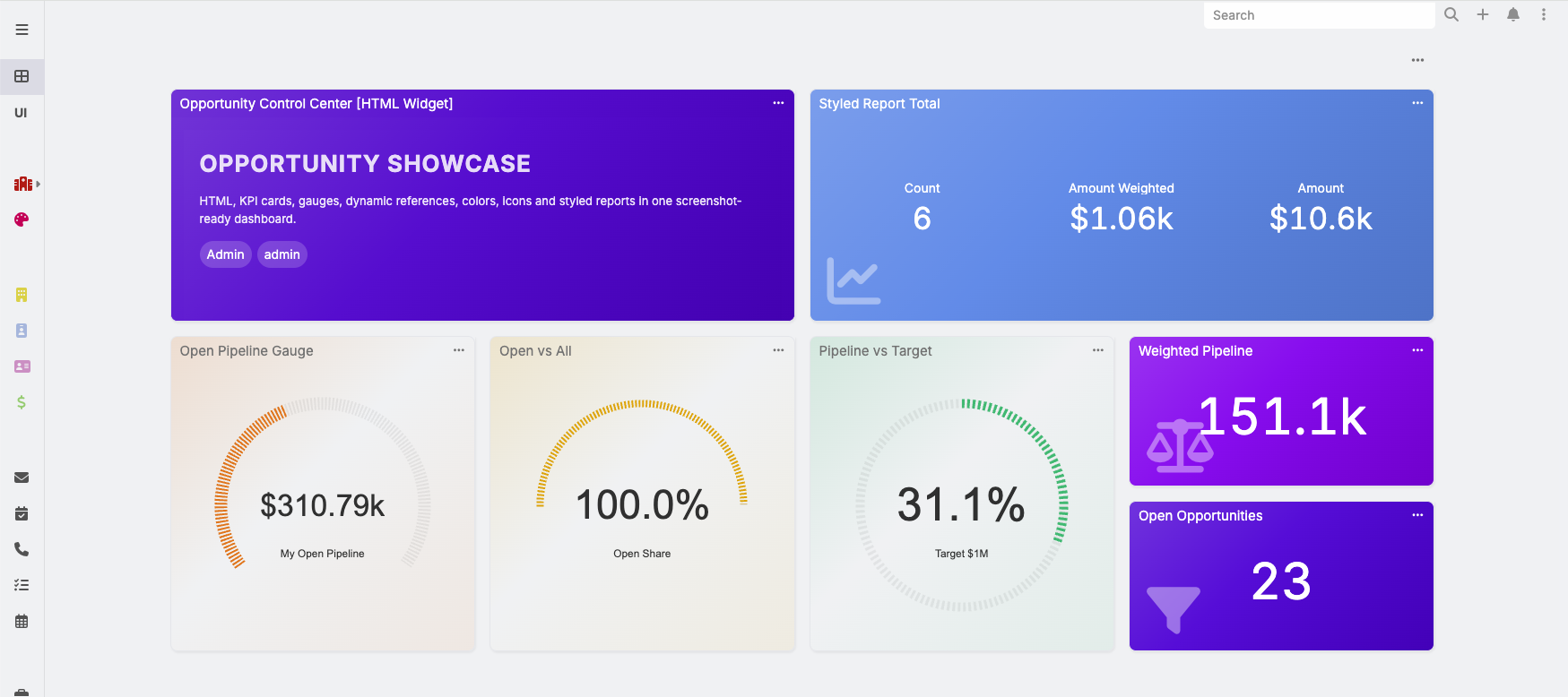
Ebla Dash Pro adds flexible dashboard widgets for richer EspoCRM dashboards. Use it to show custom HTML content, live numeric KPIs, gauge meters, and styled report summary cards.
Dash Pro is available in Ebla Dash Pro.
Quick links
- How to add a Dash Pro dashlet
- HTML dashlet
- Numeric Dashlet
- Gauge Meter
- Gauge Meter with Dynamic Reference
- Report dashlet styling
- Dashboard template actions
- Examples
Overview
Dash Pro is designed for dashboard users who need visual, easy-to-read indicators without creating custom code. It works with standard EspoCRM dashboard editing and, where relevant, respects record access through EspoCRM permissions.
Dash Pro does not require Advanced Pack for the HTML, Numeric Dashlet, Gauge Meter, or Gauge Meter (Dynamic Reference) widgets. The optional Report dashlet styling feature is shown only when Advanced Pack report functionality is available.
Typical uses include:
- Showing sales KPIs such as open opportunity count, won amount, or average deal value.
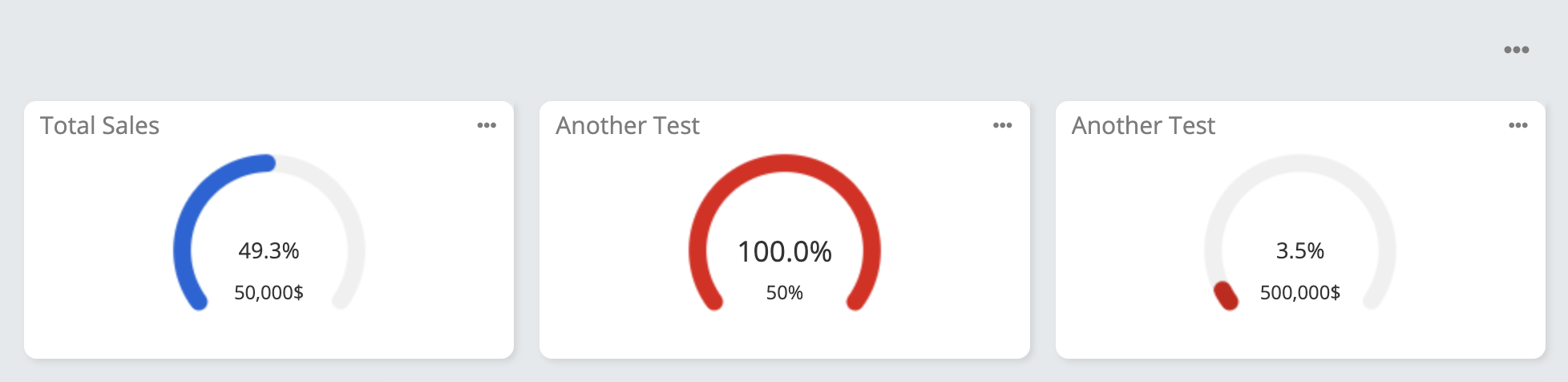
- Displaying progress toward a target with a gauge meter.
- Adding personalized dashboard messages using the current user's fields.
- Saving a dashboard layout as a reusable dashboard template.
How to add a Dash Pro dashlet
- Open Dashboard.
- Click the dashboard menu or add dashlet action.
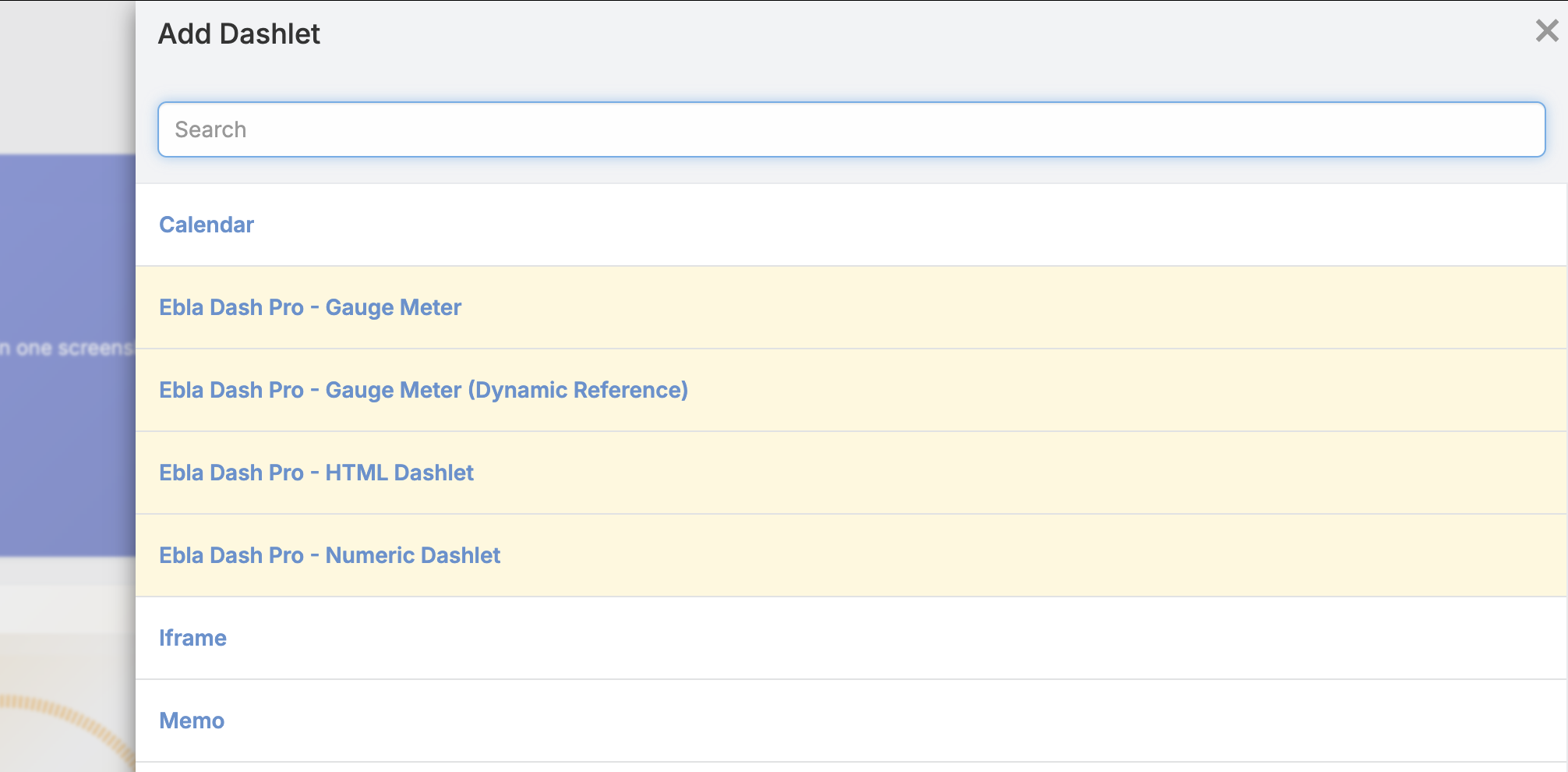
- Select one of the Dash Pro dashlets, for example Ebla Dash Pro - Numeric Dashlet, Ebla Dash Pro - Gauge Meter, or Ebla Dash Pro - HTML Dashlet.
- Fill in the dashlet options.
- Click Apply.
Tip
Start with Ebla Dash Pro - Numeric Dashlet when you only need a single KPI number. Use Ebla Dash Pro - Gauge Meter when you want to compare the KPI to a target. Use Ebla Dash Pro - Gauge Meter (Dynamic Reference) when both the value and the target should be calculated from records.
HTML dashlet
The HTML dashlet displays WYSIWYG content on the dashboard. It can also use placeholders from the current User record.
Use it when you want to add non-numeric dashboard content such as:
- personalized welcome messages;
- team announcements or reminders;
- internal links and instructions;
- formatted dashboard notes for a role or department.

Options
| Option | Description |
|---|---|
| Title | Dashlet title shown on the dashboard. |
| Color | Optional background color for the HTML dashlet. Dash Pro automatically applies a readable default text color. |
| Variables | Helper field for copying available current-user placeholders. |
| HTML | WYSIWYG content to display. User placeholders are replaced when the dashlet is rendered. |
Usage
- Add the Ebla Dash Pro - HTML Dashlet.
- Enter a title, for example
Welcome. - Optionally select a background Color.
- Use Variables to copy user placeholders.
- Write the HTML content.
- Apply the dashlet.
Example
<h3>Welcome, {{firstName}}!</h3>
<p>Your dashboard is ready. Use the menu above to review today's work.</p>
Note
The HTML content is sanitized before display. Script tags and unsafe HTML should not be used for dashboard content. If a background color is selected, Dash Pro applies a subtle gradient to the dashlet header and body, then sets a readable inherited text color; inline styles added in the WYSIWYG editor can still override text colors for specific headings, paragraphs, or spans.
Numeric Dashlet
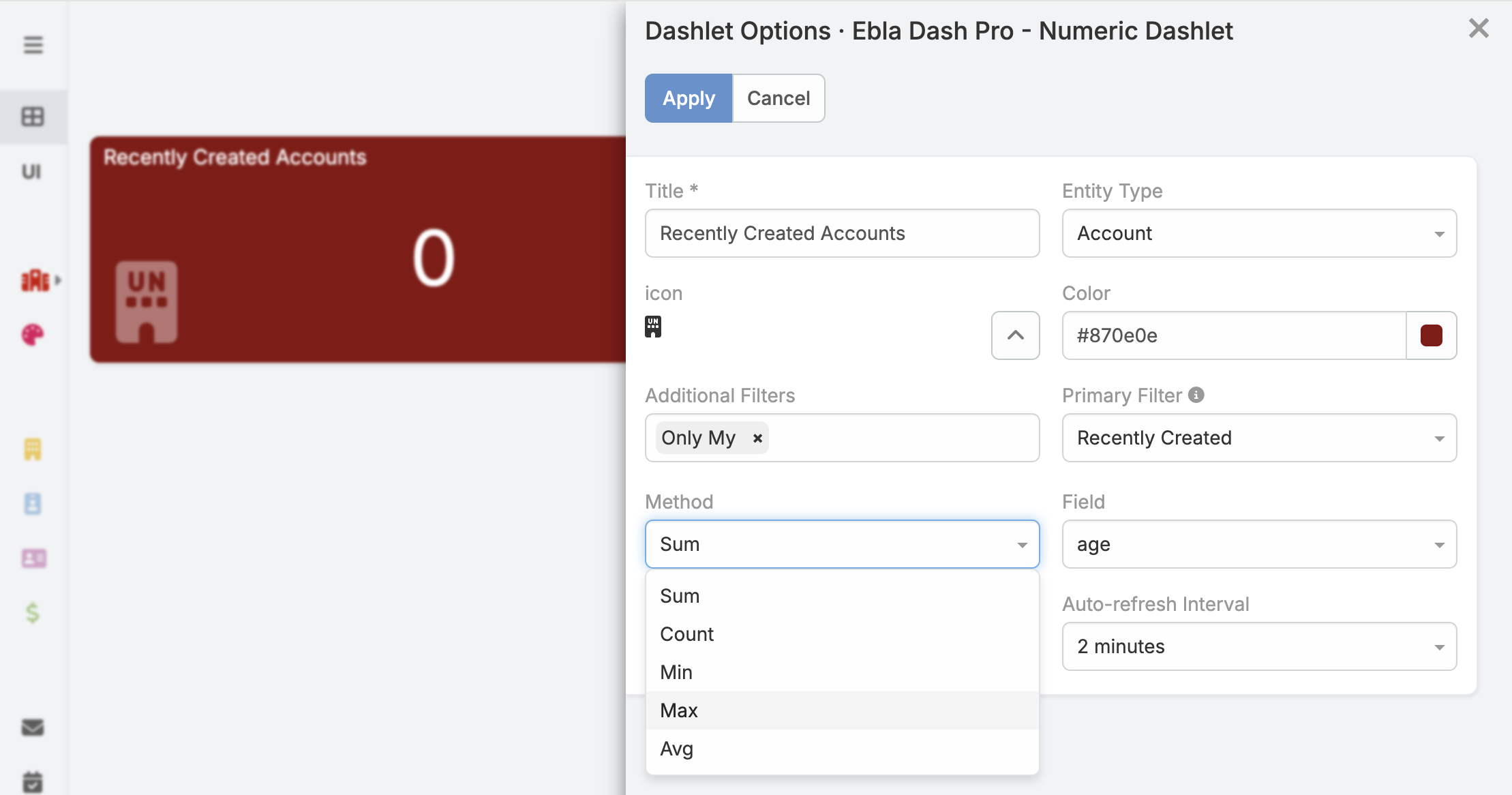
The Ebla Dash Pro - Numeric Dashlet displays a single calculated number from an entity. It supports common aggregate methods and can use primary filters and bool filters.
Use it for KPI tiles where one number is enough, for example:
- total records matching a filter;
- sum of a currency or numeric field;
- minimum or maximum value in a filtered record set;
- average numeric value, such as average deal size or average resolution time.
Options
| Option | Description |
|---|---|
| Title | Dashlet title. |
| Entity Type | Entity to calculate from, such as Account, Contact, Opportunity, Case, or a custom entity. |
| Method | Aggregate calculation: count, sum, min, max, or avg. |
| Field | Numeric field used for sum, min, max, and avg. Hidden when method is count. |
| Primary Filter | Saved/list primary filter to apply, or All. |
| Bool Filter List | Additional boolean filters supported by the selected entity. |
| Use SI Multiplier | Displays large values in compact form, for example 1.2K or 3.4M. |
| Icon | Optional Font Awesome/icon class shown with the number. |
| Color | Optional background color for the dashlet tile. Dash Pro applies it with a subtle gradient effect. |
| Auto-refresh Interval | How often the dashlet refreshes automatically. |
Usage
- Add Ebla Dash Pro - Numeric Dashlet.
- Select an Entity Type.
- Select the Method.
- If the method is not
count, select a numeric Field. - Optionally apply Primary Filter and Bool Filter List.
- Optionally choose Icon, Color, and Use SI Multiplier.
Example: open opportunity count
| Option | Value |
|---|---|
| Title | Open Opportunities |
| Entity Type | Opportunity |
| Method | count |
| Primary Filter | A filter for open opportunities, if available |
| Icon | fas fa-chart-line |
| Color | Your preferred tile color |
Clicking the numeric tile opens the list view for the configured entity with the configured filters applied.
Gauge Meter
The Ebla Dash Pro - Gauge Meter shows one calculated value against a fixed reference number. It is useful for progress or target dashboards.
Use it when the target is known in advance, for example:
- revenue compared with a monthly target;
- completed work compared with a planned capacity;
- used budget compared with an approved budget;
- any numeric value that should be read as progress toward a fixed limit.
Options
| Option | Description |
|---|---|
| Title | Dashlet title. |
| Entity Type | Entity to calculate from. |
| Method | Aggregate calculation: count, sum, min, max, or avg. |
| Field | Numeric field used when method is not count. |
| Primary Filter | Primary filter applied to the calculation. |
| Bool Filter List | Additional bool filters applied to the calculation. |
| Reference | Fixed target/reference value for the gauge. |
| Style | Gauge style: Full, Semi, or Arch. |
| Color | Gauge color. Dash Pro also uses it as a subtle background accent. |
| Label | Optional label displayed in the gauge. |
| Width | Gauge line width. |
| Stripe | Stripe setting for the gauge style. |
| Prepend | Text shown before the value. |
| Append | Text shown after the value, for example % or / {total}. |
| Text Value | Show the raw value or calculated percent. |
| Use SI Multiplier | Compact large numbers. |
| Auto-refresh Interval | How often the dashlet refreshes automatically. |
Dash Pro automatically sizes the gauge and center text to fit the dashlet body. If the dashboard widget is resized, the gauge is recalculated so it stays inside the widget without clipping.
Usage
- Add Ebla Dash Pro - Gauge Meter.
- Configure the same calculation options as Ebla Dash Pro - Numeric Dashlet.
- Enter a fixed Reference value.
- Select the visual style and color.
- Choose whether the center text should show the value or percent.
Example: monthly revenue target
| Option | Value |
|---|---|
| Title | Monthly Revenue Target |
| Entity Type | Opportunity |
| Method | sum |
| Field | amount |
| Primary Filter | Won opportunities for the current month |
| Reference | 100000 |
| Text Value | percent |
| Append | % |
Gauge Meter with Dynamic Reference
The Ebla Dash Pro - Gauge Meter (Dynamic Reference) calculates both the current value and the reference value from entity records. This is useful when the target is not fixed.
Use it when both sides of the comparison should come from live records, for example:
- won opportunities vs all opportunities;
- resolved cases vs all cases;
- paid invoices vs all invoices;
- completed tasks vs all tasks assigned to a team.
Options
| Option | Description |
|---|---|
| Title | Dashlet title. |
| Entity Type | Entity used for both calculations. |
| Method | Aggregate method used for both calculations. |
| Primary Filter 1 | Filter for the current value. |
| Primary Filter 2 | Filter for the reference value. |
| Bool Filter List 1 | Additional bool filters for the current value. |
| Bool Filter List 2 | Additional bool filters for the reference value. |
| Field 1 | Numeric field for the current value when method is not count. |
| Field 2 | Numeric field for the reference value when method is not count. |
| Style | Gauge style: Full, Semi, or Arch. |
| Color, Label, Width, Stripe, Prepend, Append, Text Value | Same visual options as Gauge Meter. Gauge and text sizes are calculated automatically. |
Example: won opportunities vs all opportunities
| Option | Value |
|---|---|
| Title | Win Rate |
| Entity Type | Opportunity |
| Method | count |
| Primary Filter 1 | Won opportunities |
| Primary Filter 2 | All or open+closed opportunity set |
| Text Value | percent |
| Style | Semi |
The first calculation becomes the gauge value. The second calculation becomes the gauge reference.
Report dashlet styling
Dash Pro extends the Advanced Pack report dashlet with visual styling options.
Note
This feature requires Advanced Pack because it customizes the report dashlet. If Advanced Pack is not installed, Dash Pro hides the report styling widget from the Add Dashlet list while the other Dash Pro widgets continue to work normally.
Use report styling to make important report summary cards easier to recognize at a glance. For example, add a color and icon for pipeline value, overdue tasks, new leads, or open support cases.
Additional options
| Option | Description |
|---|---|
| Icon | Optional icon class shown on report summary tiles. |
| Color | Optional tile background color. |
Usage
- Add or edit an Ebla Dash Pro - Report Dashlet.
- Select the report and display options as usual.
- Add an icon and color to make the report summary easier to recognize.
Tip
Report styling is most useful when the report dashlet is configured to show a compact total/summary card.
Dashboard template actions
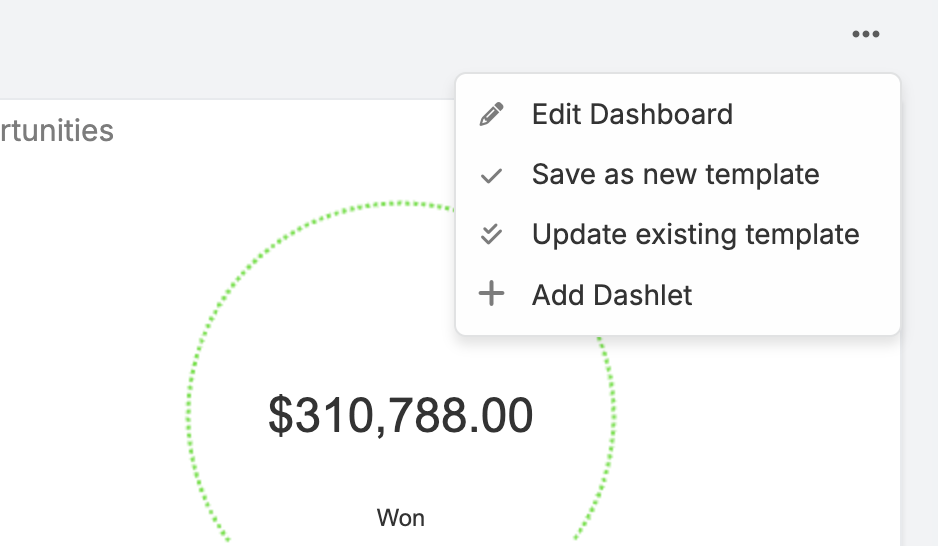
For administrators, Dash Pro adds dashboard template actions to the dashboard menu. These actions make it easier to turn a configured dashboard into a reusable Dashboard Template, push changes from the current dashboard back into an existing template, or save the current dashboard as the system default dashboard template.
The extension copies both parts of the current dashboard configuration:
- Dashboard layout: tabs, columns, dashlet positions, and dashboard structure.
- Dashlet options: the configured options for each dashlet, such as filters, colors, icons, gauge settings, and HTML content.
| Action | Description |
|---|---|
| Save as new template | Opens a new Dashboard Template record and pre-fills it with the current dashboard layout and dashlet options. |
| Update existing template | Opens a selector for existing Dashboard Templates. After choosing a template, the edit form is opened with the selected template's existing data plus the current dashboard layout and dashlet options. |
| Save as Default Template | Saves the current dashboard layout and dashlet options to global Settings so they become the default dashboard template stored in config.php. |
Save the current dashboard as a new template
- Configure your dashboard tabs and dashlets.
- Open the dashboard menu.
- Select Save as new template.
- Enter a clear template name, for example
Sales Manager Dashboard. - Save the Dashboard Template record.
Use this when you have built a new dashboard layout that should become a reusable template for other users or teams.
Update an existing or linked dashboard template
- Open the dashboard that contains the latest layout and dashlet option changes.
- Open the dashboard menu.
- Select Update existing template.
- In the template selector, choose the Dashboard Template you want to update.
- Review the Dashboard Template edit form.
- Save the record to apply the current dashboard layout and dashlet options to that template.
Use this when you are maintaining an existing template and want the template to match the dashboard you are currently editing.
Save the current dashboard as the default template
- Configure the dashboard tabs, columns, dashlets, and dashlet options that should be used as the default dashboard.
- Open the dashboard menu.
- Select Save as Default Template.
Dash Pro saves the current dashboard layout and dashlet options to EspoCRM global settings. This updates the default dashboard configuration in config.php, so it can be used as the default dashboard template for users who receive the system default layout.
Use this when an administrator has prepared a standard dashboard that should become the global default, without creating or editing a separate Dashboard Template record.
Important
The update action does not automatically detect which template a dashboard originally came from. It opens a Dashboard Template selector so the administrator can choose the correct existing or linked template intentionally. The Save as Default Template action overwrites the global default dashboard layout and dashlet options.
Example workflow
- An administrator creates a dashboard for the Sales team.
- They add KPI dashlets, gauges, colors, icons, and report summary cards.
- They select Save as new template and create
Sales Dashboard Template. - Later, the Sales team asks for a new
Win Rategauge. - The administrator updates the dashboard, then selects Update existing template.
- They choose
Sales Dashboard Templateand save it. - The reusable template now contains the updated dashboard layout and dashlet options.
- If this dashboard should also become the system default dashboard, the administrator selects Save as Default Template.
Note
These actions are available to administrator users only.
Examples
Example 1: Sales manager KPI dashboard
Create a dashboard with:
- Ebla Dash Pro - Numeric Dashlet:
Open Opportunitiesusingcount. - Ebla Dash Pro - Numeric Dashlet:
Won Revenueusingsumon the Opportunity amount field. - Ebla Dash Pro - Gauge Meter:
Monthly Targetusing won revenue against a fixed target. - Ebla Dash Pro - Gauge Meter (Dynamic Reference):
Win Rateusing won opportunities vs all opportunities. - Ebla Dash Pro - Report Dashlet: Pipeline report with a color and icon.
Example 2: Support dashboard
Create a dashboard with:
- Ebla Dash Pro - Numeric Dashlet:
Open Casesusingcount. - Ebla Dash Pro - Numeric Dashlet:
Average Resolution Timeusingavgon a numeric duration field. - Ebla Dash Pro - Gauge Meter (Dynamic Reference):
Resolved Casesvs all cases for the current month. - Ebla Dash Pro - HTML Dashlet: Support team reminders and links.
Example 3: Personal welcome panel
Use the HTML dashlet with current-user placeholders:
<h3>Hello {{firstName}},</h3>
<p>Use this dashboard to track your daily activity and pending work.</p>
<ul>
  <li>Review assigned records.</li>
  <li>Check overdue follow-ups.</li>
  <li>Update important opportunities.</li>
</ul>
Best practices
- Use clear titles so users immediately understand what each dashlet measures.
- Prefer primary filters for reusable business definitions such as “Open”, “Won”, or “This Month”.
- Use bool filters when you need user-specific or access-specific list behavior.
- Use Use SI Multiplier for large amounts to keep tiles readable.
- Avoid too many fast auto-refreshing dashlets on one dashboard.
- For gauge comparisons, make sure the value and reference use the same business meaning.
- For report comparisons, use reports with compatible entity types and numeric output.
Troubleshooting
| Issue | What to check |
|---|---|
| Dashlet shows no value | Confirm entity type, method, field, and filters are selected correctly. |
| Field option is empty | Select an entity first. For non-count methods, the entity must have numeric fields. |
Gauge shows 0% |
Check whether the reference value is empty or zero. |
Report gauge shows 0 |
Check that both reports return results and, for grid reports, include numeric summary columns. |
| Clicking a KPI opens an unexpected list | Review the primary filter and bool filter options on the dashlet. |
| HTML does not render a script | Unsafe HTML is sanitized; use static content, links, and formatting instead of scripts. |
| Template actions are not visible | Dashboard template actions are only visible to administrator users. |
| Default dashboard did not change | Confirm an administrator used Save as Default Template and that the target users are using the system default dashboard configuration rather than a personal dashboard layout. |
Related documentation
Support and feedback
Need assistance or have suggestions? Contact us through the Eblasoft support portal or email support@eblasoft.com.tr.