Ebla Contract 
Ebla Contract manages the complete contract workflow in EspoCRM: reusable contract templates, automatic party assignment, per-type numbering, readiness checks, e-signature delivery, signing progress, and completed-document download.
The extension includes the built-in Ebla signing provider and can also work with the optional Ebla PandaDoc extension.
Requirements and installation
- Install Ebla Multiple Link Pro first. Ebla Contract installation stops if the dependency is missing.
- Back up EspoCRM files and the database before installing an extension.
- Install Ebla Contract through Administration → Extensions.
- Assign create, read, edit, and delete access for contracts, contract parties, and Ebla Contract Templates as required by each user role.
After installation, the extension:
- selects Ebla as the default contract provider unless a provider is already configured;
- enables Contacts, Users, and Leads as the initial party entity types;
- adds contracts to the calendar entity list;
- creates the sample Service Agreement Ebla Contract Template and its linked PDF Template.
Contract settings
Open Administration → Ebla Contract.
Default Contracts Provider
- Ebla sends a separate public signing link to every contract party.
- PandaDoc becomes available when the Ebla PandaDoc extension is installed and configured.
Party Entity Types
This list controls the entity types available in an Ebla Contract Template role. The default list is Contacts, Users, and Leads. Every selected party record must have an email address before the contract can become ready to send.
<<<<<<< HEAD
Signature request email
Use Edit Signature Request Email on the Ebla Contract administration page to open EspoCRM's Template Manager. The
Contract Signature Request Email template controls the subject and body sent by the built-in Ebla provider. Keep the
{{contractSignUrl}} placeholder in the body when customizing the message because it is the recipient's private signing
link.
How the records work together
| Record | Purpose |
|---|---|
| Ebla Contract Template | Defines the parent type, contract type, and required signing roles. |
| PDF Template | Defines the document body and placeholders. It is created automatically with the Ebla Contract Template. |
| Contract | Stores the numbered agreement, dates, parent record, provider state, and signing status. |
| Contract Party | Connects one template role to one Contact, User, Lead, or other configured party record. |
Configure the Service Agreement template
Open Administration → Ebla Contract Templates → Service Agreement.
The important fields are:
- Name — the label used by the quick-create button.
- Type — selects the contract number prefix. Service Contract uses
SER. - Parent Type — determines which record selection window opens and where the quick-create button appears.
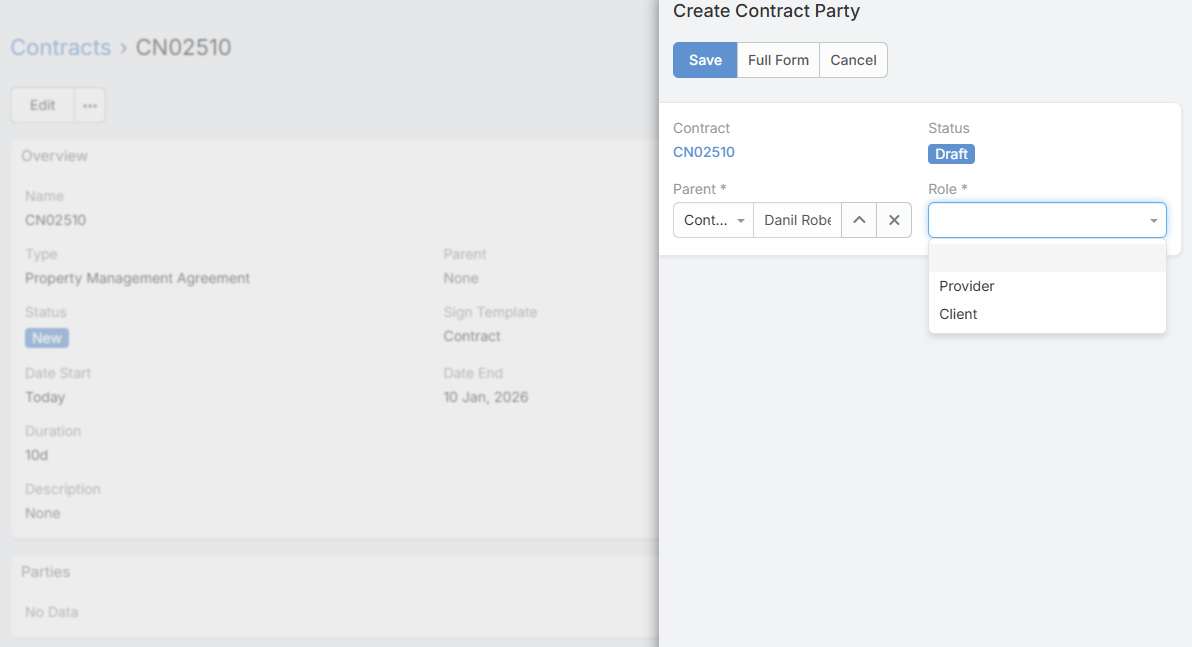
- Roles — one party is created for every row. Each role needs a name and an entity type. Select Required when the contract must not be sent without that role.
- PDF Template — read-only because it is created and linked automatically.
The sample Service Agreement defines two required roles:
- Provider, assigned to a User.
- Client, assigned to a Contact.
Role names are also used by PDF helpers, so spelling and capitalization must match the placeholders in the linked PDF Template.
To define another contract category, select Create Ebla Contract Template. Type, Parent Type, and role Entity Type start empty so the administrator makes each choice intentionally. The Roles table appears after the first role is added.
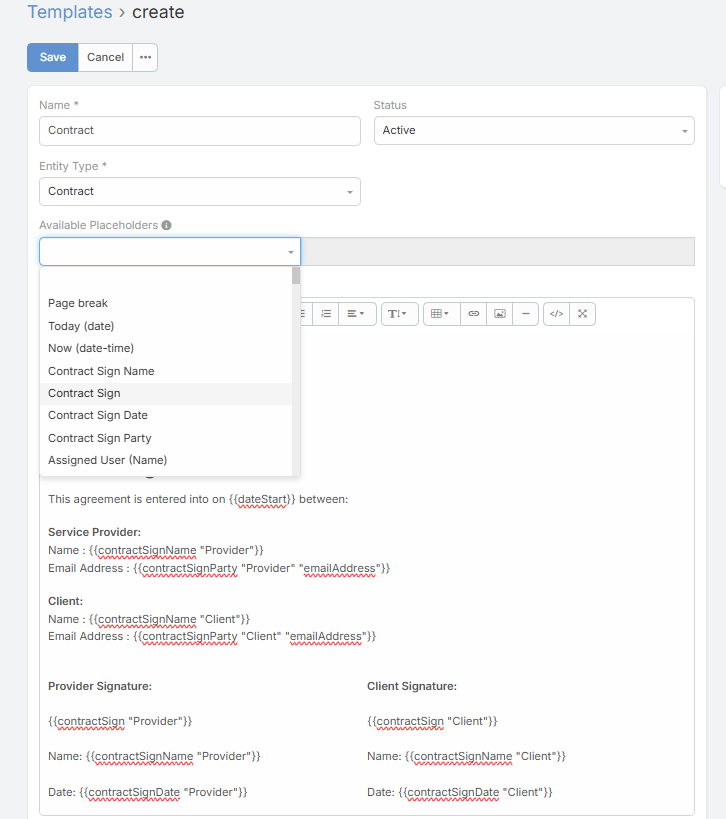
Edit the generated PDF Template
Open the PDF Template link from the Service Agreement template. Customize the generated document with your legal text, logo, formatting, and company details; there is no need to create a second PDF Template manually.
Common contract fields:
=======
How the records work together
| Record | Purpose |
|---|---|
| Ebla Contract Template | Defines the parent type, contract type, and required signing roles. |
| PDF Template | Defines the document body and placeholders. It is created automatically with the Ebla Contract Template. |
| Contract | Stores the numbered agreement, dates, parent record, provider state, and signing status. |
| Contract Party | Connects one template role to one Contact, User, Lead, or other configured party record. |
Configure the Service Agreement template
Open Administration → Ebla Contract Templates → Service Agreement.
The important fields are:
- Name — the label used by the quick-create button.
- Type — selects the contract number prefix. Service Contract uses
SER. - Parent Type — determines which record selection window opens and where the quick-create button appears.
- Roles — one party is created for every row. Each role needs a name and an entity type. Select Required when the contract must not be sent without that role.
- PDF Template — read-only because it is created and linked automatically.
The sample Service Agreement defines two required roles:
- Provider, assigned to a User.
- Client, assigned to a Contact.
Role names are also used by PDF helpers, so spelling and capitalization must match the placeholders in the linked PDF Template.
Edit the generated PDF Template
Open the PDF Template link from the Service Agreement template. Customize the generated document with your legal text, logo, formatting, and company details; there is no need to create a second PDF Template manually.
Common contract fields:
backup/ebla-contract-docs-before-master-20260805
Contract: {{number}} Parent: {{parentName}} Term: {{dateStart}} to {{dateEnd}} {{description}}
Role-aware helpers:
{{contractSignParty "Provider" "name"}}
{{contractSignParty "Provider" "emailAddress"}}
{{contractSign "Provider" width="180" height="70"}}
{{contractSignName "Provider"}}
{{contractSignDate "Provider"}}
Replace Provider with another exact role name, such as Client. contractSignParty can read a supported field from the
record assigned to that role, while the other helpers render the signature, signer name, and signing date.
Create a contract from Service Agreement
There are two supported entry points.
From a Contact
Open a Contact and select the primary Create Service Agreement button. Confirm the prompt to create the contract and open its detail view.
The button is hidden for that Contact after a contract already exists for the same Ebla Contract Template. This prevents accidental duplicate contracts while still allowing different templates to have their own action.
From the Contracts list
Open Contracts and select Create Service Agreement. EspoCRM opens the Contact selection window because Contact is the template's Parent Type.
When a template-based contract is created:
- the selected parent fills the matching Contact role;
- a User role is filled with the current user;
- EspoCRM prompts for roles that cannot be filled automatically. Use Skip to continue without an optional role; for a required role, Skip creates an empty party that must be completed before sending;
- one Contract Party is created for every template role;
- closing a record selection window aborts the contract creation.
The standard create route requires a template id. Opening or refreshing it without that parameter returns to the Contracts list, so use one of the template buttons above.
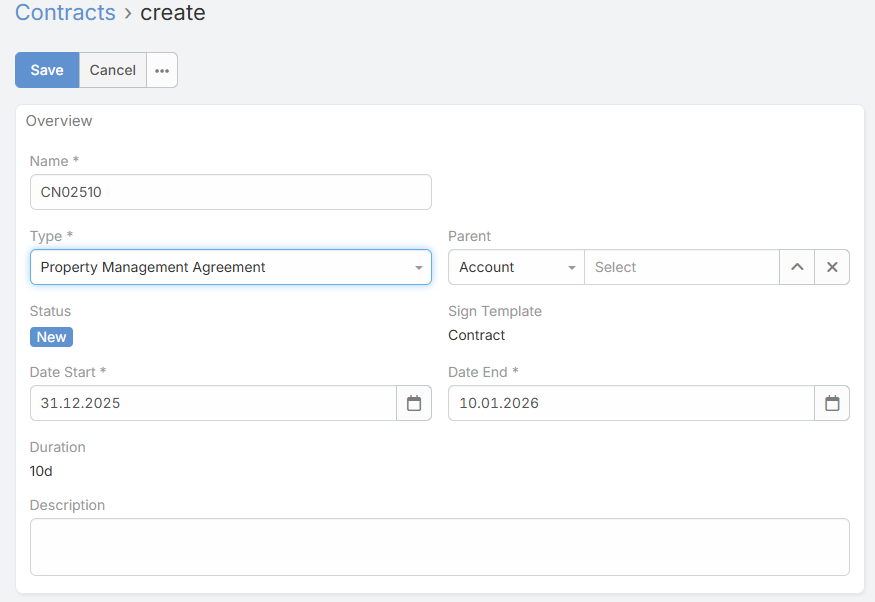
Review the new contract
The extension gives every contract a number from its type-specific sequence. Examples include SER00001 for Service
Contract and NDA00001 for Non-Disclosure Agreement. An empty type uses the fallback sequence C00001. Every prefix has
its own counter.
The contract name is optional. If it is empty when saved, the number becomes the name. A formula may set a different name; the fallback does not overwrite a non-empty value.
Duplicating a contract intentionally skips its name, status, Effective Date, Expiration Date, and parent so the new record starts as a separate agreement. Its template and party roles are retained, but previously selected parent records and signatures are not reused.
Readiness and status actions
A new contract remains New until all signing requirements are complete:
- a signing PDF Template is selected;
- at least one party exists;
- every party has a role and parent record;
- party roles and entity types match the Ebla Contract Template;
- every required role is present;
- every party record exists and has an email address.
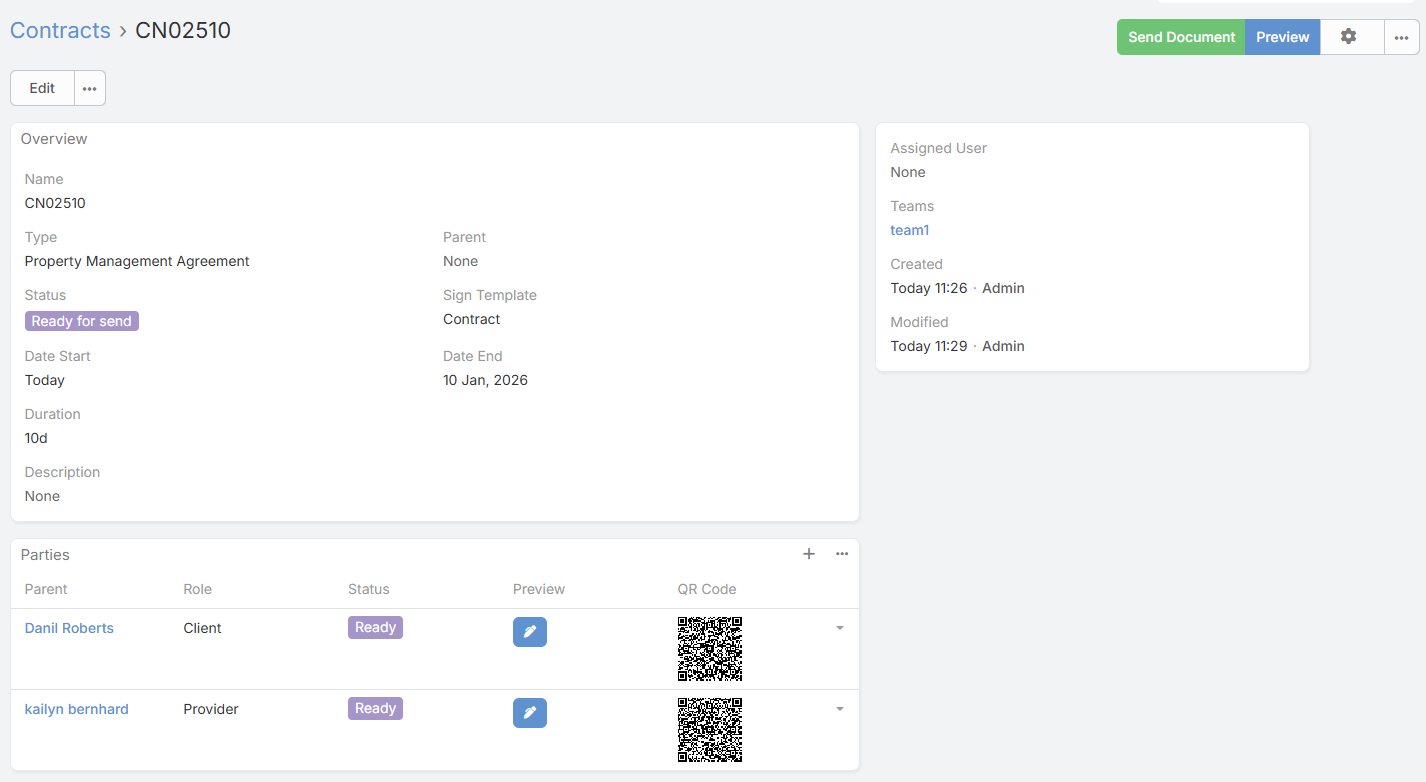
When the checks pass, the status changes automatically to Ready for send. If a requirement later becomes incomplete, the contract returns to New until corrected.
While the contract is New or Ready for send, the Signing Readiness side panel explains any missing requirement that prevents the signing action. It uses the same checks as the send workflow, so correcting the listed party, role, template, record, or email issue enables the action automatically.
The available actions follow the contract status and provider. Preview remains available while a signing PDF can be generated, and Open PDF in New Tab is available from the preview window.
| Status | Available action |
|---|---|
| New | Preview. Complete the missing requirements before sending. |
| Ready for send | Send for Signature with Ebla, or Review & Send with a review-based provider such as PandaDoc. |
| Pending | Inline party progress, Preview, and any remaining staged-send action. |
| Completed | Download Signed Contract. |
| Canceled | No signing action. |
Before sending with Ebla, EspoCRM lists the eligible recipients with checkboxes. Select at least one party. An unselected party stays available for a later send, which supports ordered or staged signing without creating another contract.
Preview and draft watermark
Preview renders the contract through its linked EspoCRM PDF Template. Open the generated document in a new browser tab
when a larger review surface is needed. Until every party signs, generated PDFs can display a red DRAFT watermark on
every page by including {{contractDraftWatermark}} in the PDF header. Canceled contracts display CANCELED instead.
Cancel a contract
Use Cancel Contract from the record actions while a contract is New, Ready for send, or Pending. The optional reason, time, and user are retained for audit. Cancellation revokes active Ebla signing links and marks unsigned parties Canceled; already saved signatures remain in the audit history. A Completed contract cannot be canceled.
Ebla signing workflow
- Select Send for Signature on a ready contract.
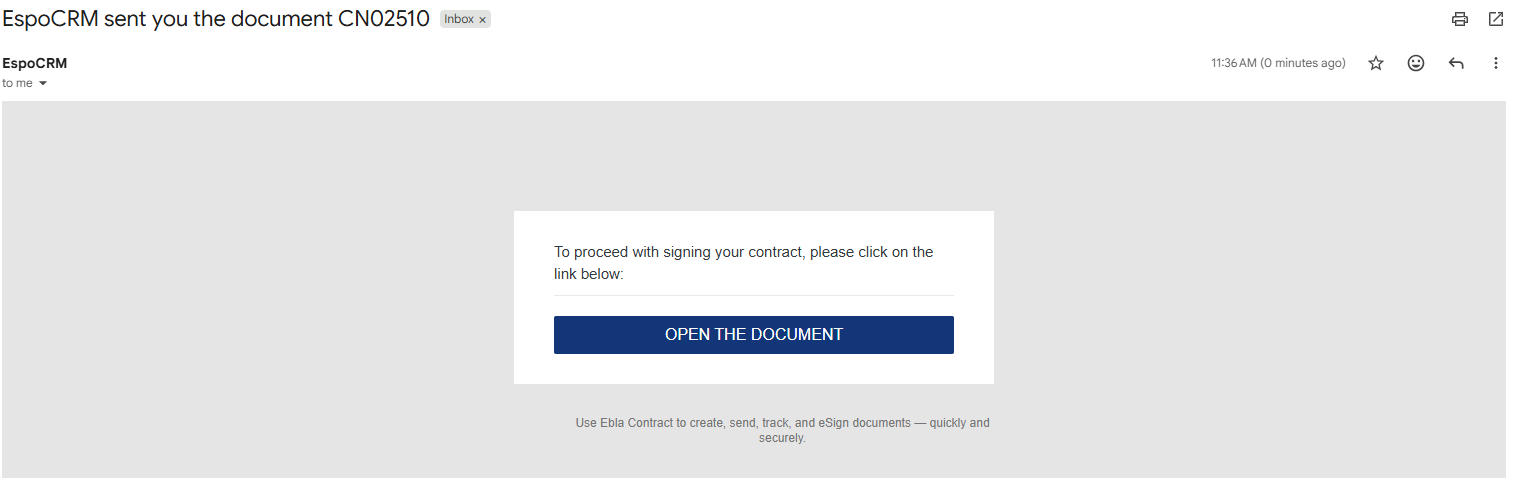
- Every selected party receives an email with its own private signing link; no EspoCRM login is required.
- The party reviews the contract and signs in the browser.
- EspoCRM records the party status, signing time, and IP address.
- Review each party's inline progress while the contract is Pending. In the Parties table, use Preview to open an available signing session or Resend Email to resend an individual signing link.
- When all parties have signed, the contract becomes Completed and the signed document can be downloaded.
Contract Party statuses progress through Draft, Ready, Sent, and Signed as the document is prepared, delivered, and completed. Party signing events also appear in the Contract stream. Changes to Effective Date, Expiration Date, Type, Parent, Ebla Contract Template, Signing Deadline, and cancellation fields are audited.
The QR code and Preview action appear only after that party has a provider signing session. With Ebla, the session is created while the signing document is prepared. With PandaDoc, it is normally created when the document is sent. A QR code is rendered only when the selected provider has a supported public signing URL.
Authorized CRM users can open a party's actions to preview its signing page, copy its confidential signing link, display the link as a QR code, or resend its email. Treat copied links and QR codes like credentials: share each one only with its intended signer.
Public signing experience
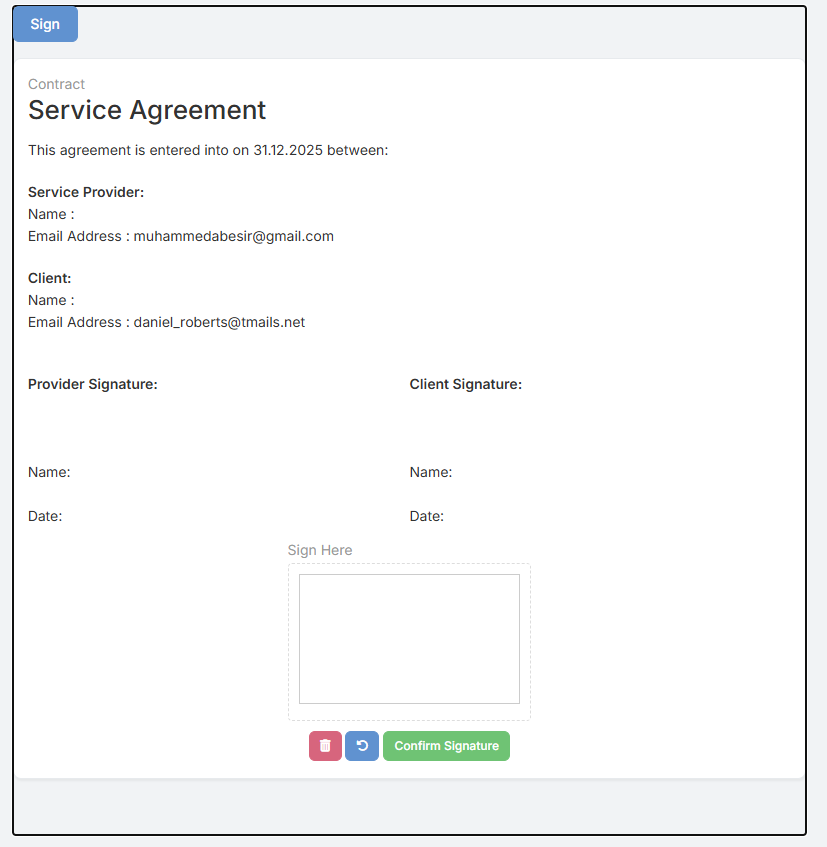
The built-in Ebla provider displays the contract as centered A4-style pages. Each {{contractSign "Role"}} placeholder
becomes a highlighted review checkbox for the matching party. The signer must review every one of their signature places
before Continue to Signature becomes available.
The signature step accepts a drawn signature or a clear PNG or JPEG upload. Nothing is submitted until the signer selects Sign Contract.
The same dialog can create a private, one-time QR code that expires after 10 minutes, allowing a signer who opened the contract on a computer to continue securely on a phone. After the phone scans it, the computer page can no longer submit the signature.
After a successful submission, the signer sees Signature Complete and can use Close This Page. The public page header uses the EspoCRM application name, so administrators can change the displayed organization name through the normal system settings instead of editing the contract template.
PandaDoc workflow
PandaDoc support is supplied by the separate Ebla PandaDoc extension. Install it after Ebla Contract, configure the PandaDoc integration, and select PandaDoc as the default contract provider.
For a ready contract, select Review & Send. EspoCRM prepares the document and opens the provider review step before it is sent. Pending contracts show the same inline party progress, and completed contracts expose Download Signed Contract when the signed file is available.
Calendar and list filters
Contracts use Effective Date and Expiration Date for calendar display and duration. The Contracts list includes:
- Active
- Completed
- Canceled
- Starts Today
- Past Expiration Date
Use Past Expiration Date to find contracts whose Expiration Date is before today.
Troubleshooting
The quick-create button is missing
- Confirm that the user's role can create Contracts.
- Confirm that the Ebla Contract Template has a Parent Type and a linked PDF Template.
- Confirm that the current record type matches the template's Parent Type.
- Check whether the current record already has a contract from the same template; if it does, the button is hidden.
The contract remains New
Check the PDF Template, the Parties panel, exact role names, role entity types, required roles, and email addresses. The contract changes to Ready for send only when every readiness check passes.
No signing action is displayed
Signing actions are status-aware. Complete the contract requirements first, or verify the provider configuration if the contract is already Ready for send.
Installation stops
======= When a template-based contract is created:
- the selected parent fills the matching Contact role;
- a User role is filled with the current user;
- EspoCRM prompts for roles that cannot be filled automatically;
- one Contract Party is created for every template role;
- canceling a required record selection aborts the contract creation.
The standard create route requires a template id. Opening or refreshing it without that parameter returns to the Contracts list, so use one of the template buttons above.
Review the new contract
The extension gives every contract a number from its type-specific sequence. Examples include SER00001 for Service
Contract and NDA00001 for Non-Disclosure Agreement. An empty type uses the fallback sequence C00001. Every prefix has
its own counter.
The contract name is optional. If it is empty when saved, the number becomes the name. A formula may set a different name; the fallback does not overwrite a non-empty value.
Duplicating a contract intentionally skips its name, status, Effective Date, and Expiration Date so the new record starts as a separate agreement.
Readiness and status actions
A new contract remains New until all signing requirements are complete:
- a signing PDF Template is selected;
- at least one party exists;
- every party has a role and parent record;
- party roles and entity types match the Ebla Contract Template;
- every required role is present;
- every party record exists and has an email address.
When the checks pass, the status changes automatically to Ready for send. If a requirement later becomes incomplete, the contract returns to New until corrected.
While the contract is New or Ready for send, the Signing Readiness side panel explains any missing requirement that prevents the signing action. It uses the same checks as the send workflow, so correcting the listed party, role, template, record, or email issue enables the action automatically.
The available action follows the contract status and provider:
| Status | Available action |
|---|---|
| New | No signing action. Complete the missing requirements. |
| Ready for send | Send for Signature with Ebla, or Review & Send with a review-based provider such as PandaDoc. |
| Pending | View Signing Progress. |
| Completed | Download Signed Contract. |
| Canceled | No signing action. |
Before sending, EspoCRM shows the recipients so the user can verify the signing parties.
Ebla signing workflow
- Select Send for Signature on a ready contract.
- Every party receives an email with its own public signing link; no EspoCRM login is required.
- The party reviews the contract and signs in the browser.
- EspoCRM records the party status, signing time, and IP address.
- Use View Signing Progress while the contract is Pending. In the Parties panel, use Preview to open an available signing session or Resend Email to resend an individual signing link.
- When all parties have signed, the contract becomes Completed and the signed document can be downloaded.
Contract Party statuses progress through Draft, Ready, Sent, and Signed as the document is prepared, delivered, and completed.
The QR code and Preview action appear only after that party has a provider signing session. With Ebla, the session is created while the signing document is prepared. With PandaDoc, it is normally created when the document is sent. A QR code is rendered only when the selected provider has a supported public signing URL.
PandaDoc workflow
PandaDoc support is supplied by the separate Ebla PandaDoc extension. Install it after Ebla Contract, configure the PandaDoc integration, and select PandaDoc as the default contract provider.
For a ready contract, select Review & Send. EspoCRM prepares the document and opens the provider review step before it is sent. Pending and completed contracts use the same View Signing Progress and Download Signed Contract actions.
Calendar and list filters
Contracts use Effective Date and Expiration Date for calendar display and duration. The Contracts list includes:
- Active
- Completed
- Canceled
- Starts Today
- Past Expiration Date
Use Past Expiration Date to find contracts whose Expiration Date is before today.
Troubleshooting
The quick-create button is missing
- Confirm that the user's role can create Contracts.
- Confirm that the Ebla Contract Template has a Parent Type and a linked PDF Template.
- Confirm that the current record type matches the template's Parent Type.
- Check whether the current record already has a contract from the same template; if it does, the button is hidden.
The contract remains New
Check the PDF Template, the Parties panel, exact role names, role entity types, required roles, and email addresses. The contract changes to Ready for send only when every readiness check passes.
No signing action is displayed
Signing actions are status-aware. Complete the contract requirements first, or verify the provider configuration if the contract is already Ready for send.
Installation stops
backup/ebla-contract-docs-before-master-20260805 Install and enable Ebla Multiple Link Pro, then install Ebla Contract again.
Support and feedback
For support, open a ticket through the EblaSoft customer portal.