Progressive Web App (PWA)
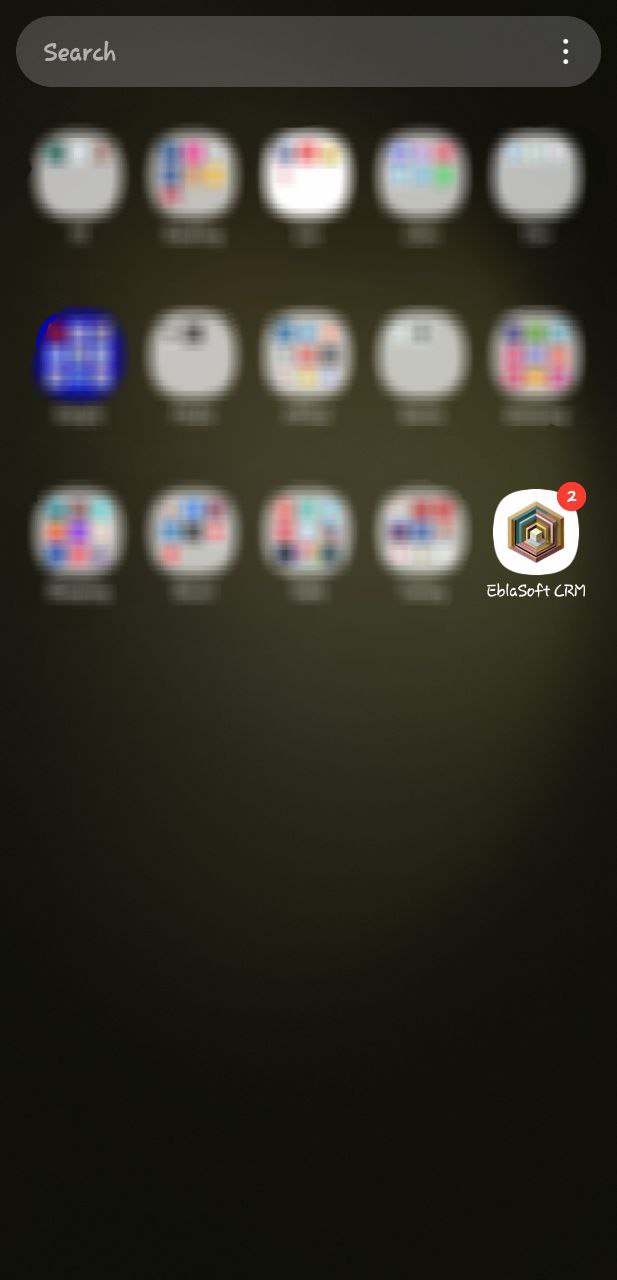
The PWA part of Ebla Mobile App lets supported browsers install your EspoCRM instance like an app on mobile and desktop devices.
It focuses on branding, installability, and quick access. It does not promise a separate native mobile app package.
What you can control
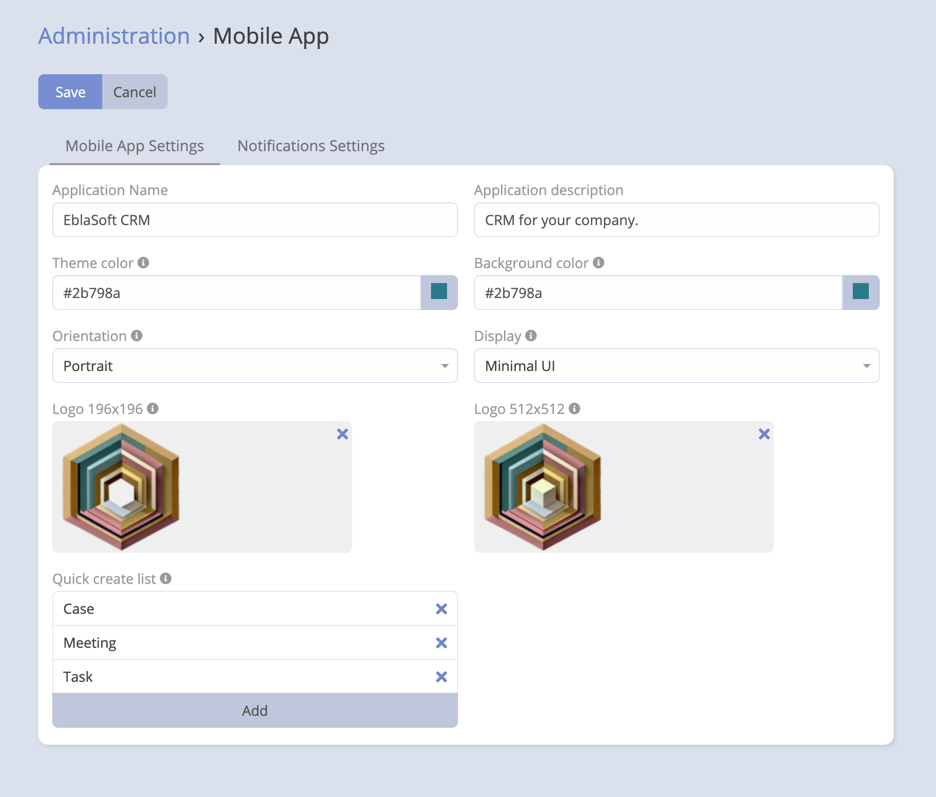
Open Administration → Mobile App and use the Mobile App Settings section.
| Setting | Purpose |
|---|---|
| PWA Application Name | The app name shown in the install experience and manifest. |
| PWA Application Description | Description used by the manifest. |
| PWA Theme Color | Brand color used by supported browsers in install and app UI surfaces. |
| PWA Background Color | Background color used during supported launch and splash experiences. |
| PWA Orientation | Preferred screen orientation for the installed app. |
| PWA Display | Display mode for the installed app: fullscreen, standalone, minimal-ui, or browser. |
| PWA Logo 196 | Smaller application icon. |
| PWA Logo 512 | Larger application icon. |
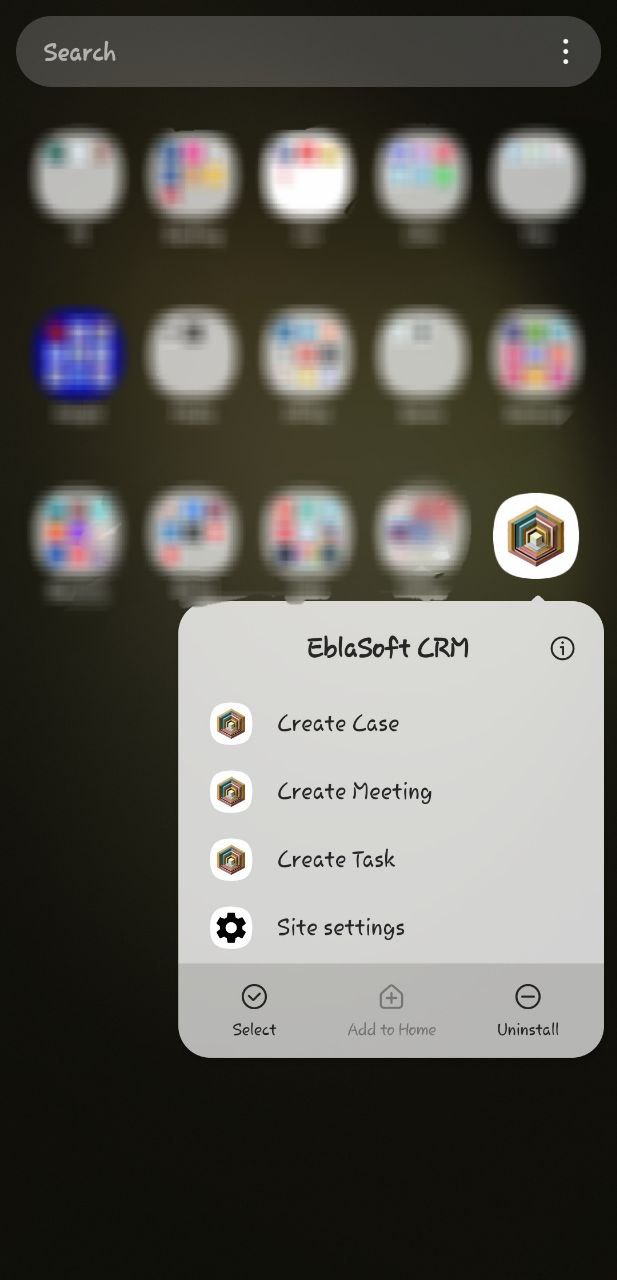
| PWA Quick Create List | Creates application shortcuts that open record creation directly from the installed app menu. |
Display modes
- Fullscreen: hides almost all browser chrome.
- Standalone: app-like window with minimal browser framing.
- Minimal-UI: similar to standalone, but browsers may keep a small navigation UI.
- Browser: opens like a normal browser tab.
Quick Create shortcuts
The PWA Quick Create List is useful when users often create the same record types from mobile devices. Each selected entity becomes a shortcut in browsers that support app shortcuts.
Installability checklist
The side panel Requirements for Mobile App checks whether your current environment is ready for installation.
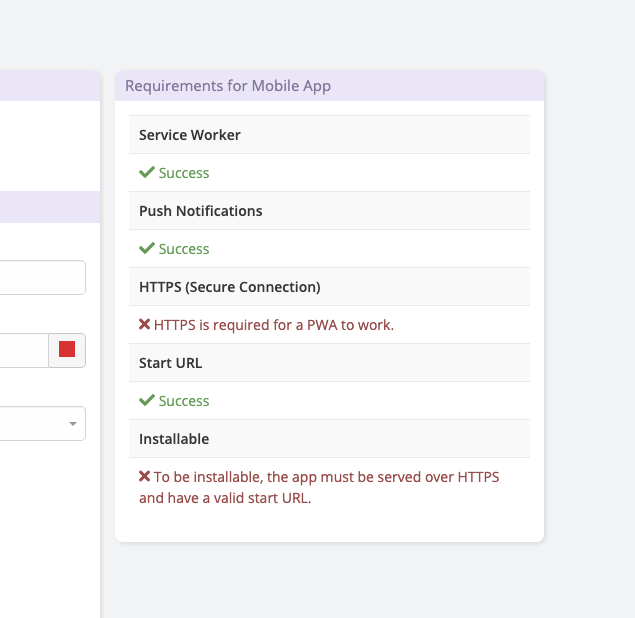
The checklist evaluates these items:
| Requirement | What it means |
|---|---|
| Service Worker | The current browser supports service workers. |
| Push Notifications | The current browser supports the push API. |
| HTTPS | The CRM is served over https://. |
| Start URL | The configured site URL matches the current origin well enough for installation. |
| Icon | A valid app icon is available from your uploaded PWA logos or the company logo fallback. |
| Installable | The basic installation conditions are satisfied. |
The checklist is browser-aware. A requirement can pass on one device and fail on another if the browser does not support the needed PWA features.
Recommended setup flow
- Open Administration → Mobile App.
- Fill in the branding fields:
- application name,
- application description,
- theme color,
- background color.
- Choose the preferred orientation and display mode.
- Upload at least one usable icon, ideally both 196 and 512 sizes.
- Configure the Quick Create List if you want installed-app shortcuts.
- Review the Requirements for Mobile App side panel and fix any failed checks.
How users install the app
Once the environment is ready, users can:
- Open the CRM URL in a supported browser.
- Use the browser's Install App or Add to Home Screen action.
- Launch EspoCRM from the installed icon like an app.
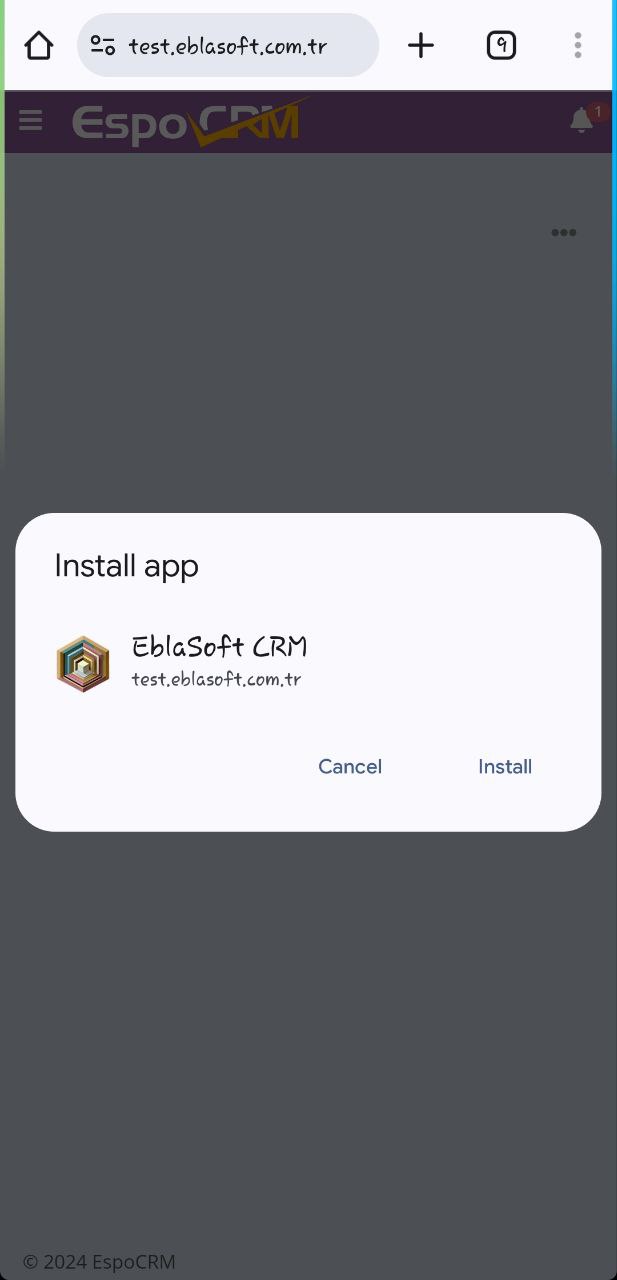
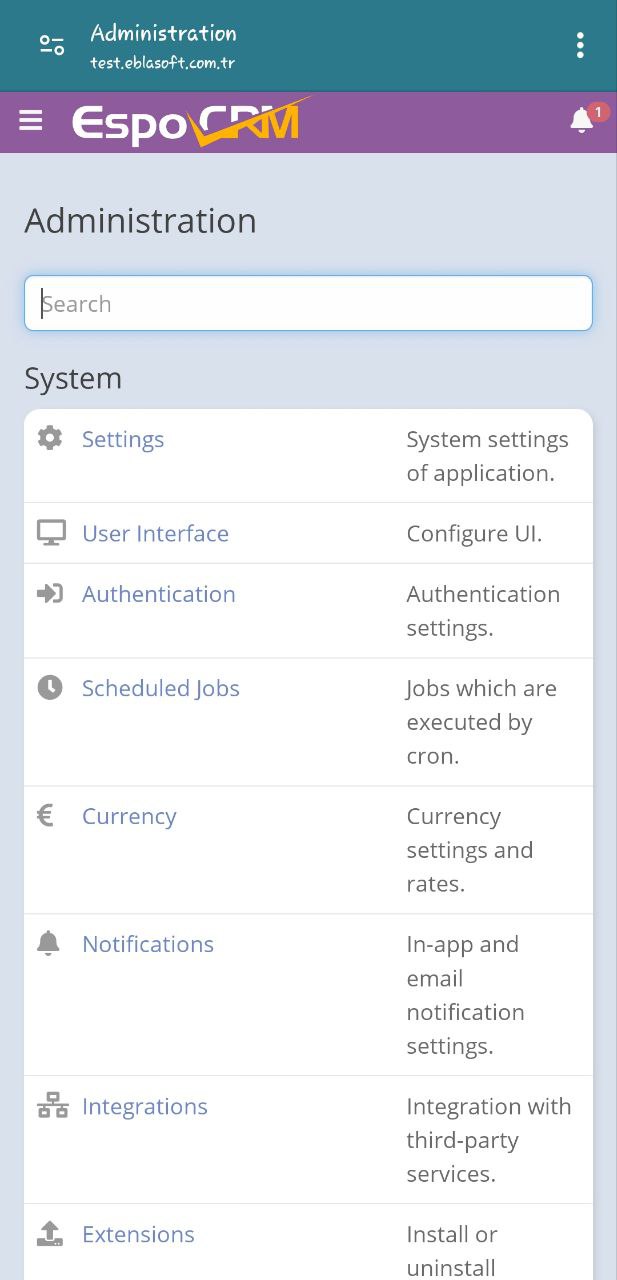
After installation, the CRM opens using the configured display mode and branding.
Good practices
- Use HTTPS for production.
- Upload clear square icons for the best install experience.
- Keep the PWA Application Name short enough to display nicely on smaller screens.
- Add only the most useful entities to PWA Quick Create List.
- Test installation on the browsers and devices your team actually uses.