Access Control
Ebla AI uses EspoCRM's built-in Roles system together with normal entity permissions. In practice, users need:
- The relevant AI scope enabled in their Role
- The normal read / create / edit permission for the affected entity
By default, regular and portal users do not have access to AI features until an Administrator enables them.
Info
Navigate to Administration → Roles and enable the required AI scopes for the relevant Role.
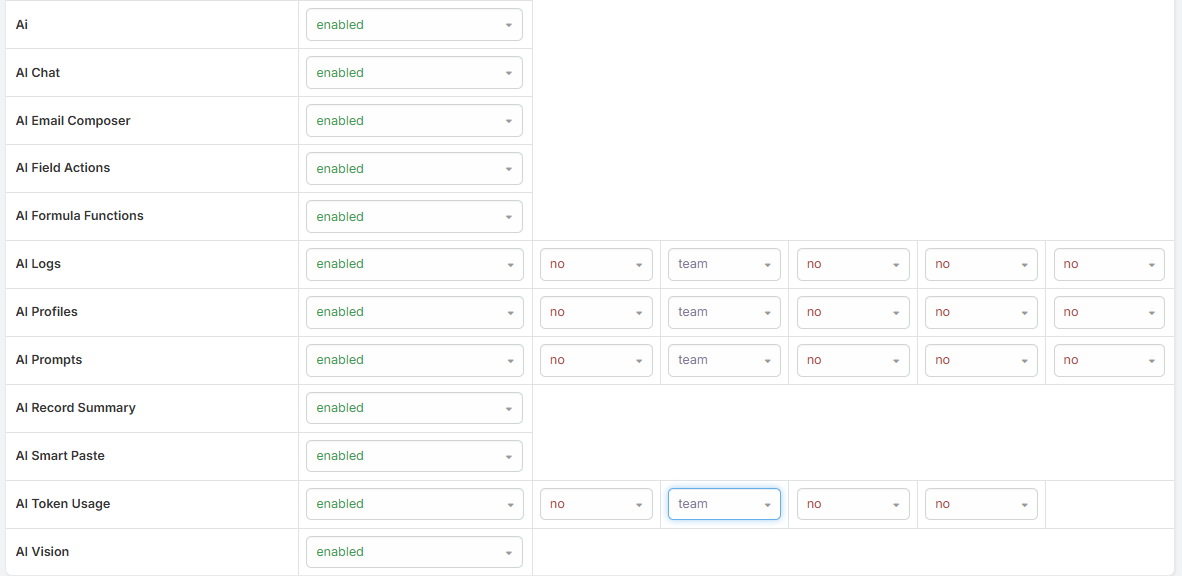
Available AI Permission Scopes
Each AI feature has its own permission scope:
| Scope | Controls |
|---|---|
Ai |
Base AI access. Required for all AI-powered features. |
AiChat |
Record-level AI Chat panel and Admin Assistant chat access |
AiEmailComposer |
AI actions in email compose, reply, and email body editing, plus the Email Analysis panel |
AiFieldAction |
AI actions on text, varchar, wysiwyg, and stream comment content, plus Voice Generation (TTS) |
AiCreate |
Create with AI from list views |
AiTemplates |
AI Email Template and PDF Template generation |
AiFormula |
AI formula functions such as eblaAi\textGenerate, eblaAi\runPrompt, eblaAi\analyzeImage, eblaAi\generateImage, and eblaAi\generateSpeech |
AiRecordSummary |
AI Summary panel on record detail views |
AiSmartPaste |
Smart Paste on list views, relationship panels, and new-record forms |
AiVision |
Image analysis and AI image generation |
How Feature Access Is Evaluated
The AI scope alone is not enough. The user also needs the standard entity permission required by the feature.
Examples:
- AI Chat requires
Ai+AiChatand read access to the current record - AI Summary requires
AiRecordSummaryand read access to the current record - Smart Paste requires
Ai+AiSmartPasteand create or edit access to the target entity - AI Create requires
Ai+AiCreateand create access to the target entity - Email & PDF Template Generation requires
Ai+AiTemplatesand create access to the template entity - Email Analysis requires
Ai+AiEmailComposerand read access to Email - Voice Generation (TTS) requires
Ai+AiFieldAction - Email Translation requires
Aiand read access to Email - Image Analysis / Generation requires
Ai+AiVision
Administrators
Administrators can access the admin-facing Ebla AI pages, but normal record permissions still matter when a feature reads or writes CRM data.
MCP Server
The MCP Server requires its integration to be enabled and a valid set of credentials. Every MCP tool call authenticates as a real user and still honors that user's role scopes and record permissions — an agent can never read or change anything the connecting user could not. See MCP Server for setup.
Roles Configuration Tips
Recommended patterns:
- Grant
Aias the base permission first - Add only the feature scopes the role should use
- Keep
AiChat,AiRecordSummary, andAiSmartPasteseparate so usage can be controlled more precisely - Grant
AiVisiononly to users who should analyze or generate images
Token Usage Limits
In addition to scope-based access control, Ebla AI supports token usage limits.
Per-User Override
- Navigate to Administration → Users.
- Open the user record.
- Set AI Monthly Token Limit.
Even though the field name says Monthly, it acts as the user's personal token-limit override for the currently configured system period:
- Daily
- Weekly
- Monthly
Set it to 0 to fall back to the global default limit.
What Happens at the Limit
When the effective limit is reached:
- New AI requests are blocked
- The user receives an error explaining that their token limit has been reached
- Administrators are not blocked by token limits
See Token Usage Statistics for details.