Practical examples for Dynamic Logic Plus
These workflows use the entities, fields, and relationships described below. Configure the corresponding entities in your installation before following the steps. For version information and upgrade guidance, see the main guide.
Hide a Contact selection filter and populate Account
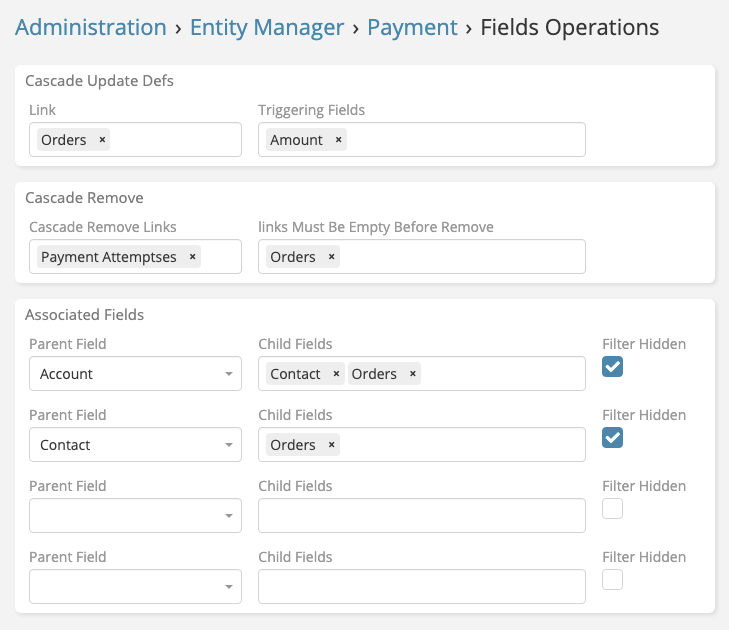
Assume Payment has Account and Contact links, and Contact also has an Account link. Open Administration → Entity Manager → Payment → Fields → Contact. Add a cascading rule with Local Field: Account on Payment and Foreign Field: Account on Contact.
Enable the two extension options:
| Extension option | Result |
|---|---|
| Hide Filter | The Account condition remains active without appearing as an editable filter in the Contact selector. |
| Auto-Populate Local Field | Selecting a Contact linked to Acme fills Payment's Account with Acme. |
To allow a Contact to be selected while Payment's Account is empty, leave EspoCRM's Match Required option off.
For multi-record selection, auto-population occurs only when every selected record has the same nonempty source link value.
Filter Orders from a Payment's relation panel
A payment belongs to a customer account and a contact. When linking orders to that payment, the available orders should match both values.
Configure the rules
Open Administration → Entity Manager → Payment → Fields → Orders and add these rules under Dynamic Logic → Cascading select:
| Local Field on Payment | Foreign Field on Order | Selection condition |
|---|---|---|
| Account | Account | The order belongs to Payment's account. |
| Contact | Contact | The order belongs to Payment's contact. |
Leave Hide Filter off to show Account and Contact as editable filters in the selector. Enable it to keep those conditions active without displaying them. These rules apply to both the Orders link field and the Orders relation panel; separate panel rules are not required.
Try the workflow
- Open a Payment with Account BashirTEC and Contact mohamad bashir, such as P00013 in the local example.
- In the bottom Orders panel, open its menu and choose Select.
- The dialog applies Account = BashirTEC and Contact = mohamad bashir. Orders must also satisfy any existing panel selection restrictions, such as having no payment assigned.
- Save a different Account or Contact on the Payment and open Select again. The dialog uses the new values.
If a local value is empty, the corresponding condition is omitted when Match Required is off. With Match Required on, the missing required value prevents matching records. The panel continues to show its already linked orders; this feature filters the selection dialog.
Before
Recalculate an order when item quantities change
Business situation
Atlas Office Supplies places an office furniture order, ORD00022, with two item records:
| Order item | Initial quantity |
|---|---|
| Office desk | 3 |
| Ergonomic office chair | 5 |
| Order Total Qty | 8 |
The customer later requests two more chairs. Saving the chair item should update the order total automatically.
Prepare the calculation
This workflow uses an Order Item → Order link and an Order → Order Items relationship. Each item has a Quantity field, and the order has a Total Qty field.
The order's EspoCRM before-save formula calculates its total:
totalQuantity = entity\sumRelated('orderItems', 'quantity');
The field and link names in this formula are totalQuantity, orderItems, and quantity. Use your installation's names if they differ. EspoCRM runs the calculation when the order is saved. The extension triggers that save when an item quantity changes.
Configure Dynamic Logic Plus
- Open Administration → Entity Manager → Order Item → Dynamic Logic Plus.
- Under Cascade Update Defs, choose Order in Link.
- Choose Quantity in Triggering Fields and save.
Try the workflow
- Open the Ergonomic office chair item linked to ORD00022.
- Change Quantity from 5 to 7 and save the item.
- Open or refresh ORD00022. Its Total Qty changes from 8 to 10.
| Value | Before the item edit | After saving the item |
|---|---|---|
| Desk quantity | 3 | 3 |
| Chair quantity | 5 | 7 |
| Order Total Qty | 8 | 10 |
The trigger is configured on Order Item, where Quantity is edited. The extension re-saves its linked Order, allowing the order's formula to run. Editing the order manually is not required.
Remove an unwanted order with its dependent items
Business situation
An unwanted duplicate order, ORD00023, belongs to Atlas Office Supplies and contains two item records:
| Order item | Quantity |
|---|---|
| Monitor stand | 2 |
| Keyboard | 4 |
These items belong to the duplicate order. When that order is removed, its dependent items should also be removed. The customer's separate furniture order, ORD00022, should remain.
Configure Dynamic Logic Plus
- Open Administration → Entity Manager → Order → Dynamic Logic Plus.
- Under Cascade Remove, select Order Items in Cascade Remove Links.
- Save the settings.
The Order Items relationship must be a hasMany link. This configuration applies to the Order entity: removing any order also removes its linked items.
Try the workflow
- Open ORD00023 and verify that its items are Monitor stand and Keyboard.
- Choose Remove from the order's record actions and confirm removal.
- Check the Order Item list. The two item records belonging to ORD00023 should no longer appear as active records.
- Verify that Atlas Office Supplies, ORD00022, and ORD00022's Office desk and Ergonomic office chair items remain.
| Record | Expected result after removing ORD00023 |
|---|---|
| ORD00023 | Removed |
| Its Monitor stand and Keyboard items | Removed |
| Atlas Office Supplies | Retained |
| ORD00022 and its desk and chair items | Retained |
For earlier settings, see Upgrading from an earlier version.