Map View
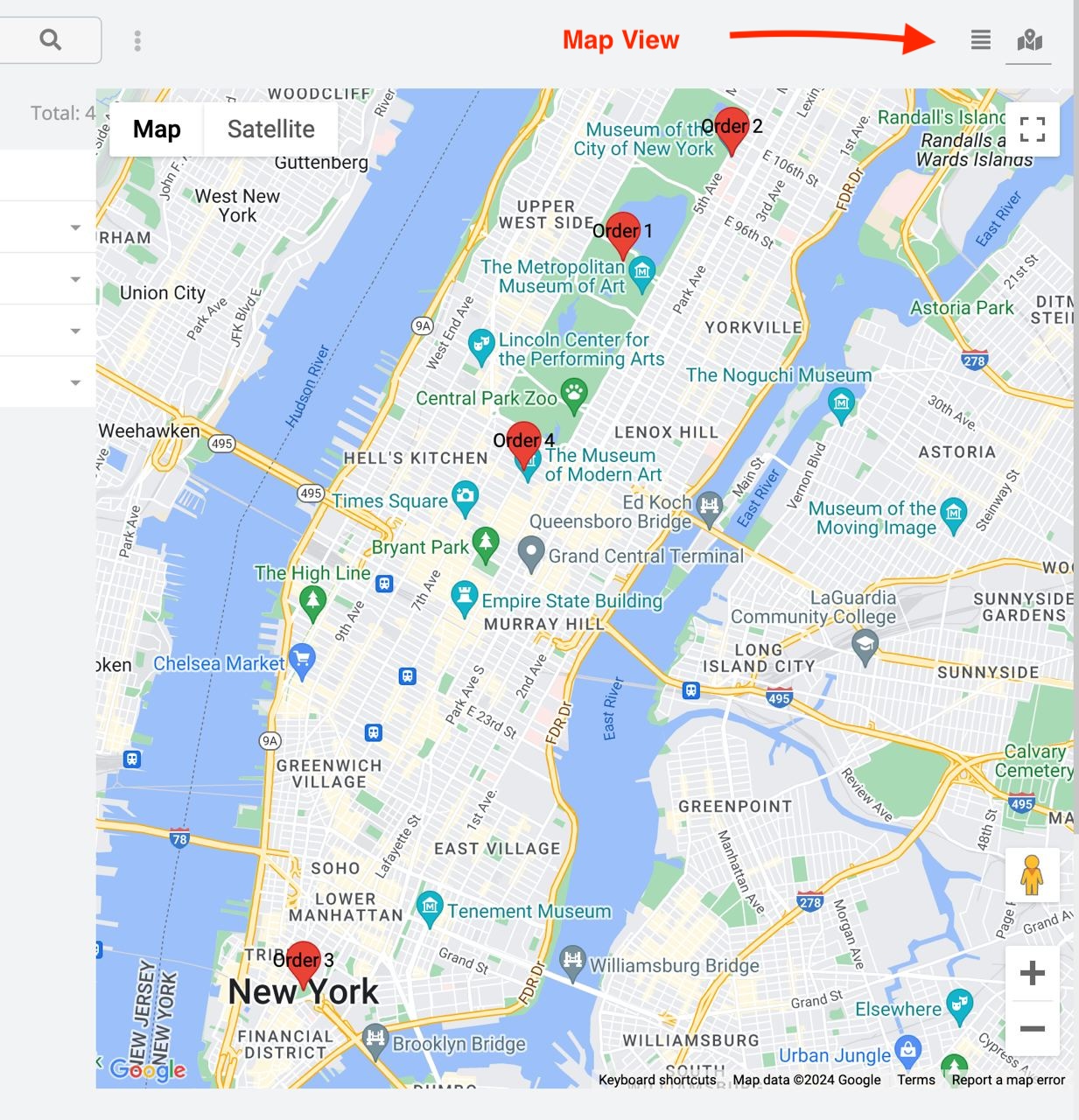
Map View adds an interactive Google Map mode to entity list views. Records are shown as markers, grouped with clustering, and can be opened through quick detail popups directly from the map.
Entity Parameters
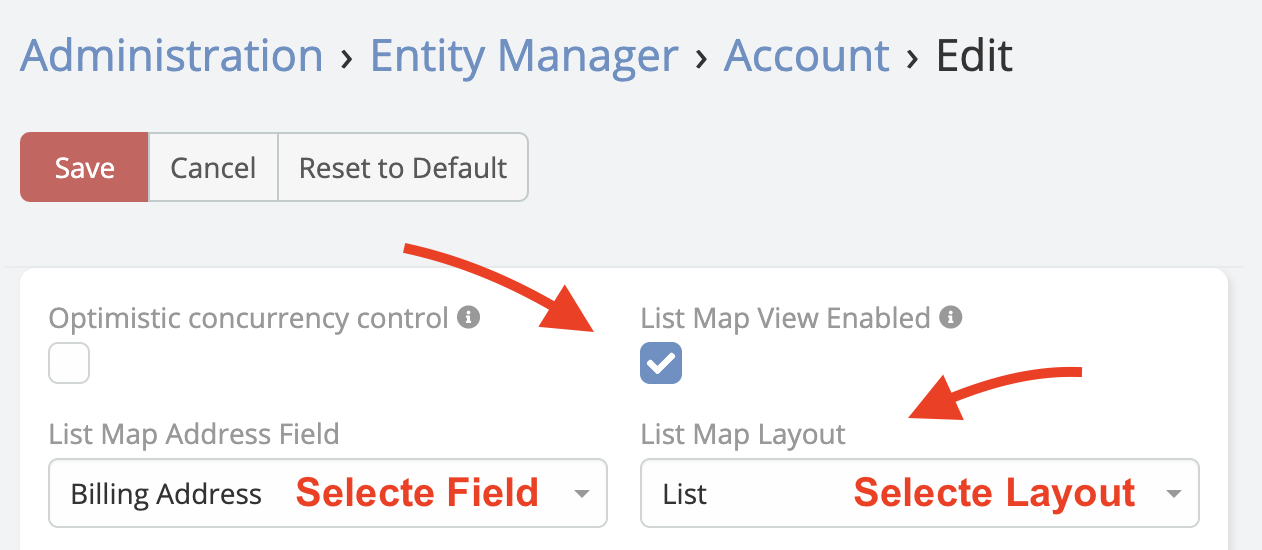
At the entity level, Ebla Map Plus adds these options:
| Parameter | Description |
|---|---|
List Map View Enabled |
Enables the map mode in list view. |
List Map Address Field |
Chooses which address field is used for marker placement. |
List Map Layout |
Chooses the layout used beside the map list and for the map mode record rendering. |
Enable Map View for an Entity
- Navigate to Administration -> Entity Manager.
- Open the entity you want to map.
- Enable Enable Map List View.
- Set Address Field on Map List.
- Optionally set Layout of Map List.
- Save and clear cache if needed.
Marker Rendering Behavior
Map View is more flexible than a coordinates-only map:
- If latitude and longitude exist, the record is placed directly on the map.
- If coordinates are missing but the chosen address contains enough text data, the browser geocoder can still place the marker from the address.
- Markers are clustered automatically for large result sets.
- Hovering a marker shows a popup layout with record details.
- Clicking a marker opens the record in a quick-view modal.
Marker Popup Layouts
For marker popups, the extension uses:
Map Marker Listadditional layout if the target entity defines it- Otherwise
List Small
This lets you control which fields appear when users hover over a marker.
Global Map Behavior
The global Google Maps integration also affects Map View:
- Scroll Wheel controls mouse-wheel zooming on the map.