OpenRouter Integration Setup
API Setup
- Go to OpenRouter and sign in to your account.
- Click "Create Key" to generate a new API key.
- Give it a name then click "Create Key".
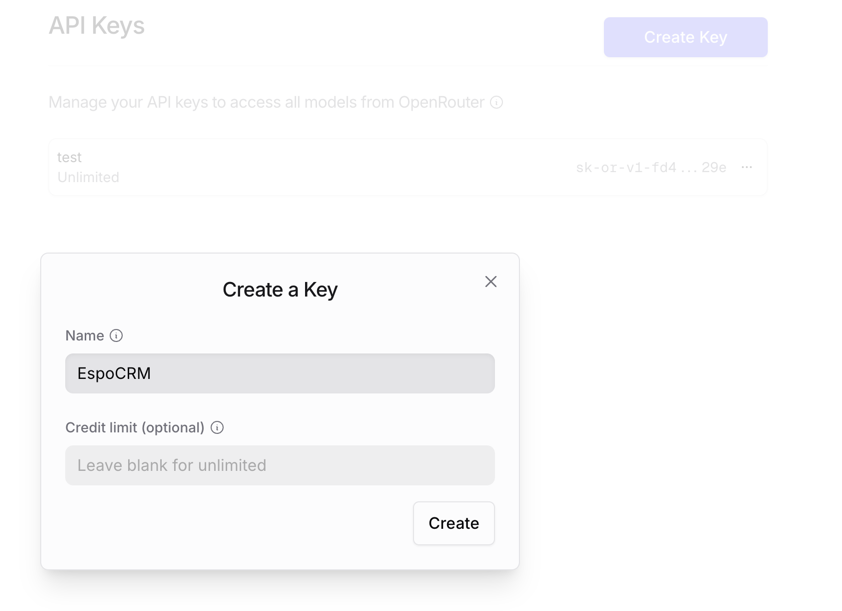
- Copy the API key.
EspoCRM Setup
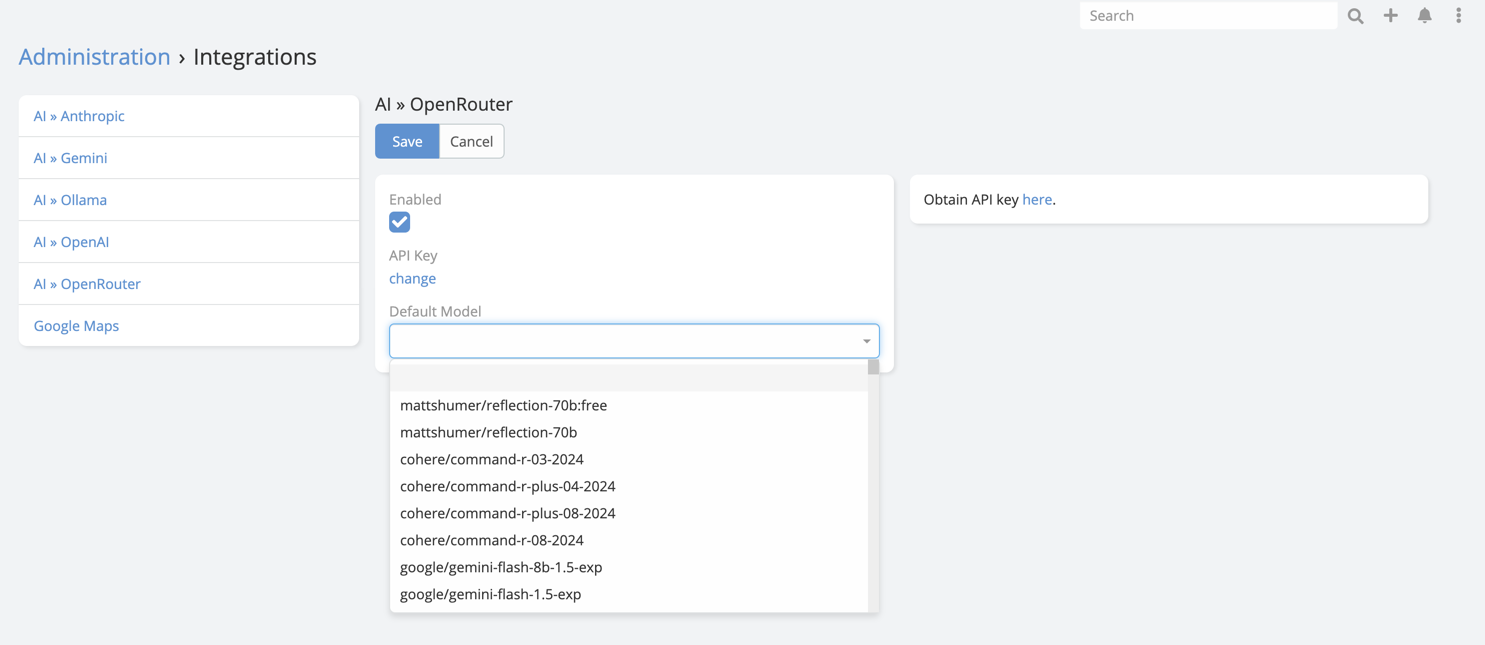
- Navigate to Administration -> Integrations -> OpenRouter.
- Paste the API key obtained from OpenRouter into API Key field.
-
Choose the default model you want to use.
Final Step in AI Settings
After saving the integration:
- Navigate to Administration -> AI Settings.
- Open the General tab.
- Set Default AI Provider to OpenRouter.
- Save.
Capability Notes
OpenRouter capability depends on the routed model you choose.
Recommended approach:
- Use it for chat and text generation first
- Verify vision support before enabling image-analysis workflows
- Test advanced generation features with the selected model before documenting them for end users