Admin Settings
Global AI settings are managed from Administration → AI Settings. These settings control provider selection, feature defaults, token limits, response caching, translation behavior, Smart Paste visibility, and Create with AI visibility.
Video
General Tab
The General tab contains the core extension-wide settings.
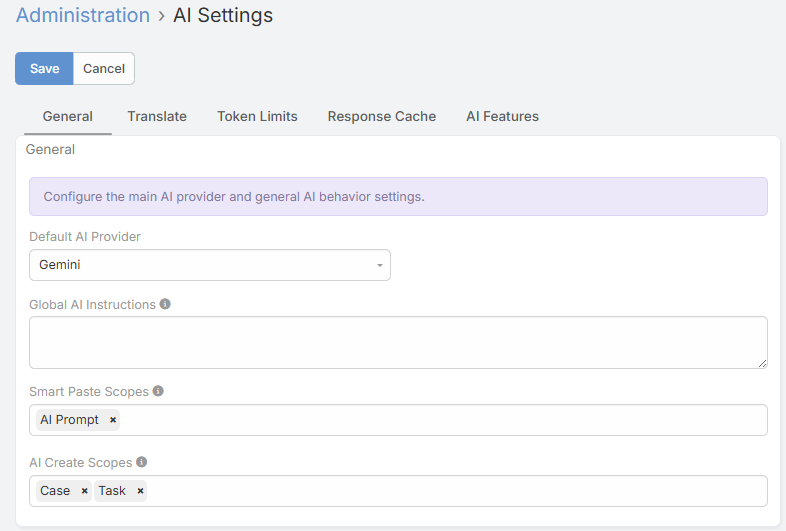
Default AI Provider
The Default AI Provider setting determines which configured provider is used when a feature does not explicitly resolve another provider from an AI Profile.
Most UI-based AI actions also expect a default provider to be set before their buttons become visible.
Default AI Profile
The Default AI Profile is the fallback profile used when a feature does not have:
- An entity-specific profile
- A feature-specific default profile
- A prompt-linked profile
Global AI Instructions
The Global AI Instructions field lets you define text that is prepended to every AI request across the extension.
Use this for:
- Company-wide response rules
- Tone and formatting guidance
- Language instructions
- Restrictions or compliance reminders
Note
Global AI Instructions are combined with the selected AI Profile context and the feature-specific prompt. The global instructions are applied first.
Variable Substitution
Global AI Instructions and AI Profile context fields support {varName} placeholders.
Always available:
| Variable | Replaced with |
|---|---|
{userName} |
Current user's full name |
{userRole} |
Administrator or User |
{companyName} |
Company name from Settings |
{today} |
Current date in YYYY-MM-DD format |
{language} |
Current user's language code |
Available when a feature runs against a record context:
| Variable | Replaced with |
|---|---|
{entityType} |
Entity type, such as Contact or Opportunity |
{entityName} |
The record name |
{entityId} |
The record ID |
Unknown placeholders are left unchanged.
Translate Tab
The Translate tab contains language and email-translation settings.
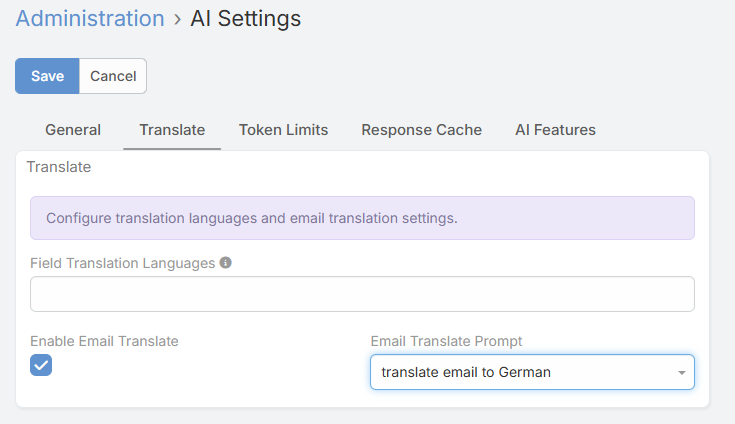
AI Translate Languages
It controls the language list shown by translation actions in text fields, varchar fields, WYSIWYG fields, and stream comments.
Behavior:
- If one language is configured, the UI shows a single Translate action
- If multiple languages are configured, the UI shows a Translate To sub-menu
Enable Email Translate
Enable Email Translate to show the Translate button on Email detail views.
AI Email Translate Default Profile
Set a dedicated profile if you want email translations to use a different model or context than the global default.
AI Email Translate Default Prompt
Set the prompt used for the email translation request.
Important
Email translation expects a translation prompt to be configured. For reliable use, set AI Email Translate Default Prompt explicitly.
Token Limits Tab
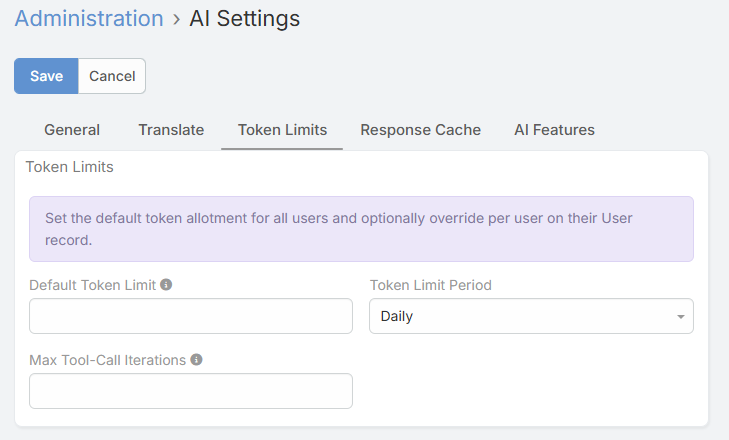
Default Token Limit
The Default Token Limit sets the fallback system-wide token quota for non-admin users.
0means unlimited- Applies only when the user does not have a personal override
Token Limit Period
The Token Limit Period defines the enforcement window:
- Daily
- Weekly
- Monthly
Per-User Override
Each user record has an AI Monthly Token Limit field. Even though the label says Monthly, the value acts as that user's personal override for the currently configured period.
Max Tool-Call Iterations
It limits how many consecutive tool-call rounds the AI Chat engine can perform in one request.
Use cases:
- Lower values reduce cost and keep tool usage tight
- Higher values help with more complex multi-step chat tasks
Response Cache Tab
The response cache reuses identical AI responses for selected features.
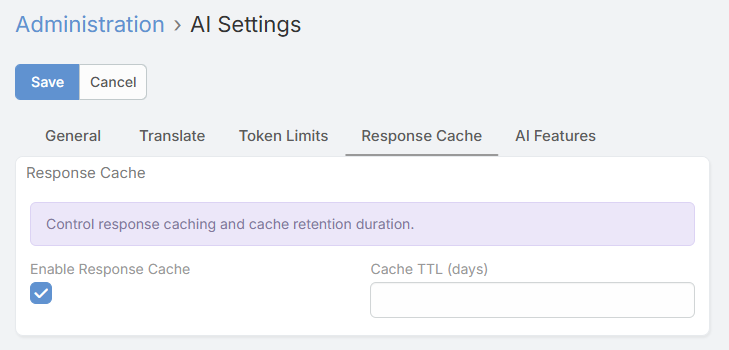
Settings
- Response Cache
- Cache TTL in days
What Is Cached
The current implementation uses response caching for several feature APIs, including:
- Email composer actions
- Email template generation
- PDF template generation
- Field text actions
Some AI interactions are intentionally excluded, especially tool-using chat flows.
Cache Notes
- Cached responses return faster
- Cached responses do not consume new tokens on the cache-hit request
- Cache hits are visible in AI Log
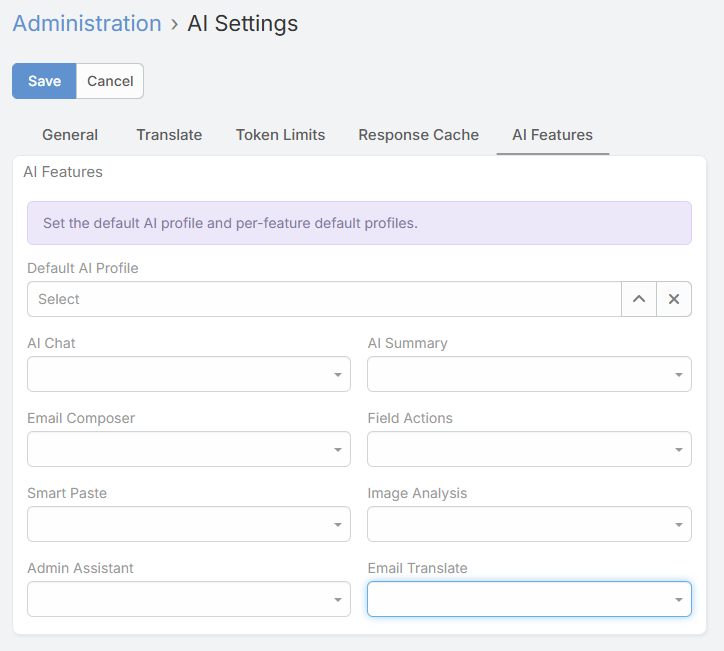
AI Features Tab
This tab lets you assign default profiles per feature.
| Setting | Used By |
|---|---|
| Default AI Profile | Global fallback for all features |
| AI Chat Default Profile | Record-level AI Chat |
| AI Summary Default Profile | AI Summary |
| AI Email Composer Default Profile | Draft, reply, polish, grammar, tone |
| AI Field Action Default Profile | Text field and stream comment AI actions |
| AI Smart Paste Default Profile | Smart Paste |
| AI Vision Default Profile | Image analysis |
| AI Image Generation Default Profile | AI image generation |
| AI Speech Generation Default Profile | Speech generation |
| AI Admin Assistant Default Profile | Admin Assistant |
| AI Email Translate Default Profile | Email translation |
Smart Paste Scopes
The Smart Paste Scopes field controls where Smart Paste buttons appear.
Recommended configuration:
- Open Administration → AI Settings → General.
- Select the entity types you want to support.
- Save.
Tip
Explicitly selecting the scopes gives the most predictable button visibility across main list views, relationship panels, and new-record forms.
AI Create Scopes
The AI Create Scopes field controls where Create with AI appears.
- Open Administration → AI Settings → General.
- Select the entity types that should show Create with AI.
- Save.
The button then appears:
- In the main list view header
- In supported relationship panel lists