AI Profiles (Contexts)
AI Profiles define how Ebla AI behaves for different use cases. A profile can specify the provider, model, tone, token settings, and AI tool access level used by a feature.
Video
Profiles are reusable and can be assigned:
- As the global default profile
- As a per-feature default profile
- As an entity-specific AI Chat or AI Summary profile
- Directly on an AI Prompt
Default Profile Templates
On a fresh installation, Ebla AI seeds seven ready-to-use profiles:
- General CRM Assistant
- Email Reply Assistant
- Sales Assistant
- Support Assistant
- Record Summarizer
- Content Writer
- Data Analyst
These provide practical starting points for common CRM use cases.
Creating an AI Profile
- Navigate to Administration → AI Profiles.
- Click Create.
- Enter the profile details.
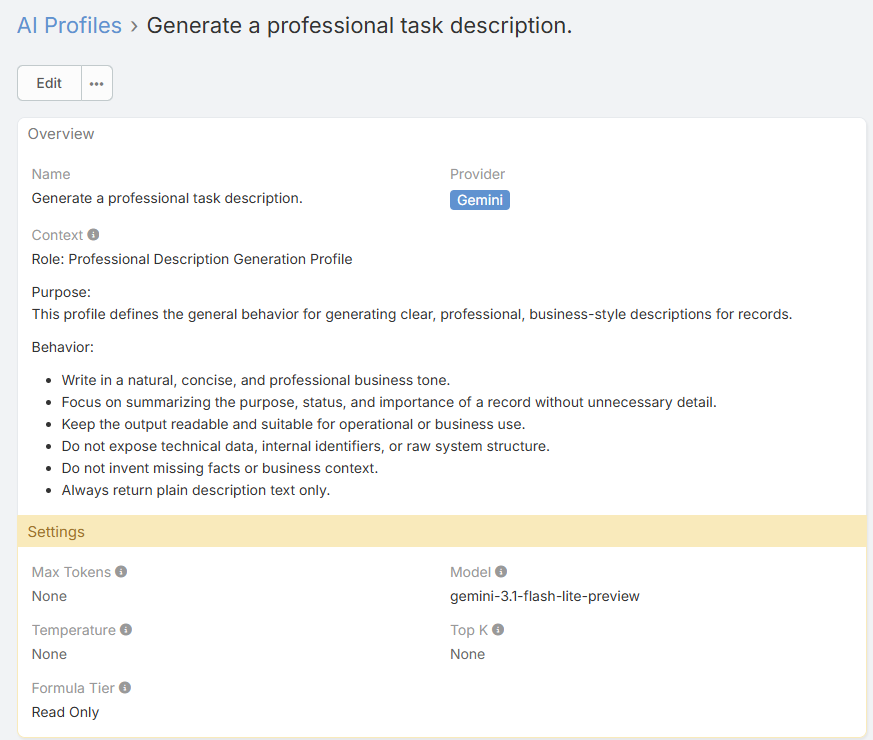
Main Fields
- Name - Profile name shown throughout the extension
- Provider - Optional. Leave empty to use the current default AI provider
- Context - System-style instructions for the AI
- Model - Selected dynamically from the chosen provider
- Max Tokens - Token budget used by the request
- Temperature - Controls randomness
- Top K - Additional sampling control
- Formula Tier - Controls what AI Chat tools are available
Provider and Model Behavior
Provider
If Provider is left empty, the profile inherits the configured Default AI Provider from AI Settings.
Model
The Model field is populated dynamically based on the selected provider using the provider's available model list.
This means the model choices can differ across:
- OpenAI
- Gemini
- Anthropic
- OpenRouter
- Ollama
Context Field
The Context field contains the reusable instructions sent with requests that use the profile.
Typical examples:
- "You are a concise CRM sales assistant."
- "Always respond in professional British English."
- "Focus on structured data extraction and return clean results."
Variable Substitution in Context
The Context field supports {varName} placeholders. The same variables available in Global AI Instructions can be used here.
Example:
You are a CRM assistant for {companyName}.
You are helping {userName} ({userRole}).
Always respond in {language}.
Knowledge Articles
A profile (and an AI Prompt) can link one or more Knowledge Base articles. The content of the linked articles is injected into the AI context as reference material — for example SOPs, policies, pricing, or talking points.
- Open the AI Profile (or AI Prompt).
- In the Knowledge Articles panel, link the relevant Knowledge Base articles.
- Save.
Because the content is read at request time, updating an article automatically updates the AI's grounding the next time the profile or prompt runs — no need to re-edit the profile.
Formula Tier
The Formula Tier field is especially important for AI Chat and the Admin Assistant.
Available values:
- read - Read-only data tools
- write - Read and write data tools
- admin - Administrative tools such as entity, field, layout, translation, and formula helpers
Important
Use admin only for carefully controlled administrative profiles. Record-level AI chat usually only needs read.
Default Usage Patterns
Common profile strategies:
- General CRM Assistant for chat and general AI features
- Record Summarizer for AI Summary
- Email Reply Assistant for compose and reply workflows
- Data Analyst for Smart Paste or structured extraction
Assigning Profiles to Features
Profiles can be assigned in several places.
Global or Per-Feature Defaults
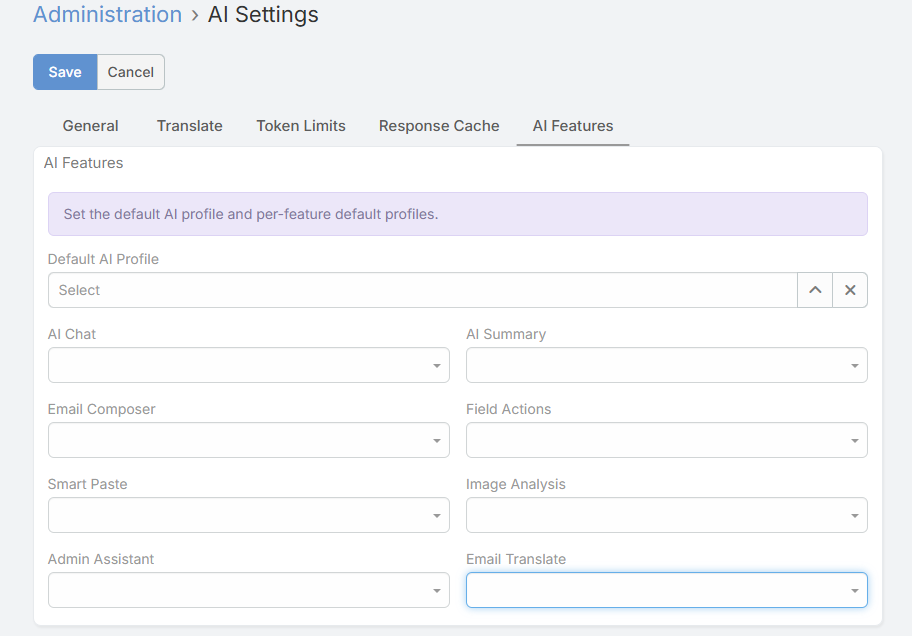
Navigate to Administration → AI Settings → AI Features and assign:
- Chat profile
- Summary profile
- Email composer profile
- Field action profile
- Smart Paste profile
- Vision profile
- Admin Assistant profile
- Email translation profile
Per Entity in Entity Manager
For record-level features, you can assign profiles per entity:
- Navigate to Administration → Entity Manager.
- Open an entity.
- Configure:
- AI Chat Profile
- AI Summary Profile
On AI Prompts
An AI Prompt can optionally link to a profile. This is useful when a specific prompt should always use a specific model or behavior.
Teams and Ownership
AI Profiles support:
- Assigned User
- Teams
Use this when you want profile ownership or team-level organization inside the admin UI.
Temperature Guidelines
Useful starting ranges:
- 0.2 - 0.4 for deterministic tasks such as summaries and extraction
- 0.5 - 0.7 for balanced CRM assistant behavior
- 0.7 - 0.8 for more creative drafting tasks