Stream Comment
The Stream Comment feature adds AI writing actions to the record stream post box.
It helps users refine, translate, or rewrite comments before posting them to the stream.
Video
Requirements
Users need:
AiaccessAi Field Actionaccess- A configured default AI provider
Using AI in the Stream
- Open a record detail view.
- Go to the Stream panel.
- Type a draft comment in the post box.
- Click the AI button beside the post controls.
- Choose the action you want.
- Review the updated text in the comment box.
- Click Post when ready.
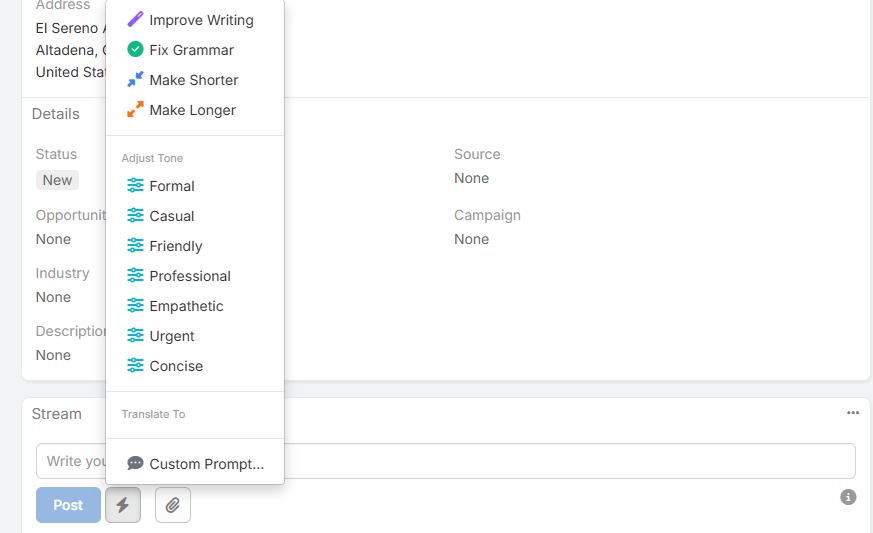
Available Actions
- Improve Writing
- Fix Grammar
- Make Shorter
- Make Longer
- Adjust Tone
- Translate or Translate To
- Custom Prompt...
- Undo Last Change
Adjust Tone
The tone menu offers:
- Formal
- Casual
- Friendly
- Professional
- Empathetic
- Urgent
- Concise
Translation Behavior
Stream translation uses the same language list configured in AI Settings -> Translate -> AI Translate Languages.
Current behavior:
- One configured language shows a single Translate action
- Multiple configured languages show Translate To
Undo Behavior
After the first successful AI action, Undo Last Change appears at the top of the menu.
Undo is:
- Session-only
- Multi-step
- Limited to the current unsent comment draft
Custom Prompt
The Custom Prompt... action opens the general AI Generate modal with the current comment text passed in as context.
This is useful when the built-in improve/grammar/shorter/longer actions are not specific enough.
Notes
- Stream AI works on the draft text currently in the comment box
- The generated text is not posted automatically
- You can keep refining the draft before posting