AI Create
AI Create lets users describe a new CRM record in plain language and open the normal EspoCRM create form with suggested values already filled in.
The feature is designed for fast first-pass record creation. Nothing is saved automatically until the user reviews the generated values in the standard form and clicks Save.
Video
Requirements
Users need:
Aiaccess- Create access to the target entity
- A configured default AI provider
Administrators also need to enable the entity in Administration -> AI Settings -> General -> AI Create Scopes.
Where the Button Appears
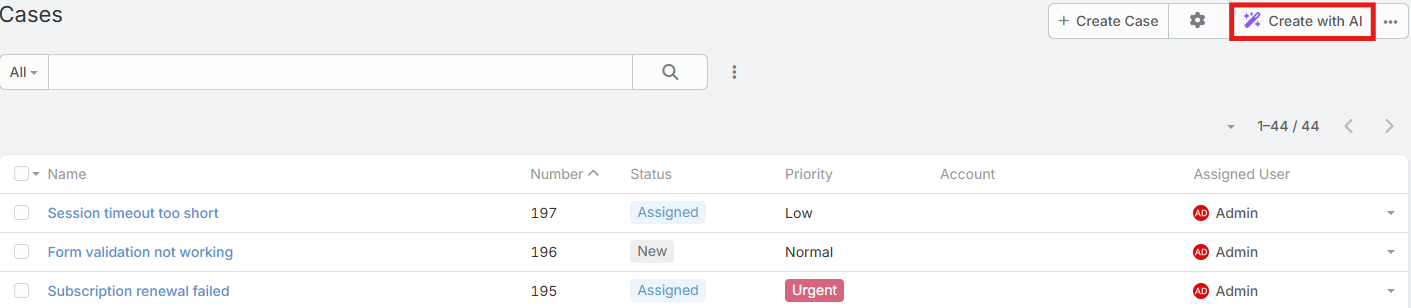
When an entity is selected in AI Create Scopes, the Create with AI button appears:
- In the main list view header
- In supported relationship panel lists
Using AI Create
- Open the list view for a supported entity.
- Click Create with AI.
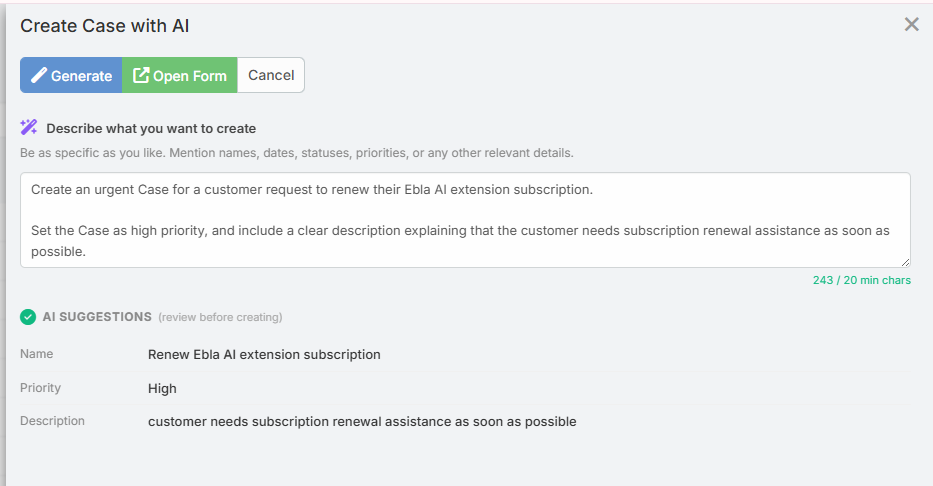
- Enter a plain-language description of the record you want to create.
- Click Generate.
- Review the AI suggestions shown in the preview area.
- Click Open Form to open the regular create form with the generated attributes.
- Review the values, make any changes you want, and save the record normally.
Description Rules
- The description must contain at least
20characters - A live counter is shown in the modal
- The description is preserved when you click Regenerate
Example:
A new contact named Sarah Johnson, senior buyer at Acme Corp in New York, interested in our enterprise plan. Met at the trade show last week.
What the Preview Shows
The preview lists the field labels and the values extracted by the AI.
If the AI cannot confidently map the description to specific fields, the modal still lets the user open the create form and complete the record manually.
Notes
- The AI only fills fields that exist on the target entity
- No record is created until the user opens the form and saves it
- Better descriptions usually produce better field mapping
- Relationship fields and advanced business logic may still need manual review in the final form
Tips
- Mention names, companies, dates, priorities, and statuses explicitly
- If an important field is missing, refine the description and click Regenerate