AI Image Generation
AI Image Generation creates new images from a text prompt and saves them as EspoCRM attachments.
The generated image can then be attached to an Image field or appended to an Attachment Multiple field.
Video
Requirements
Users need:
AiaccessAi Visionaccess- A configured default AI provider
- A provider or profile that supports image generation
Recommended admin setting:
- AI Settings -> AI Features -> Image Generation for a dedicated image-capable profile.
Enabling It on a Field
Image generation is opt-in per field.
- Navigate to Administration -> Entity Manager -> {Entity} -> Fields -> {Field}.
- Enable AI Image Generation.
- Save.
This works for:
ImageAttachment Multiple
Where the Button Appears
In the current UI:
Imagefields show the button in edit modeAttachment Multiplefields show an icon button in edit mode
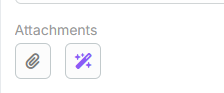
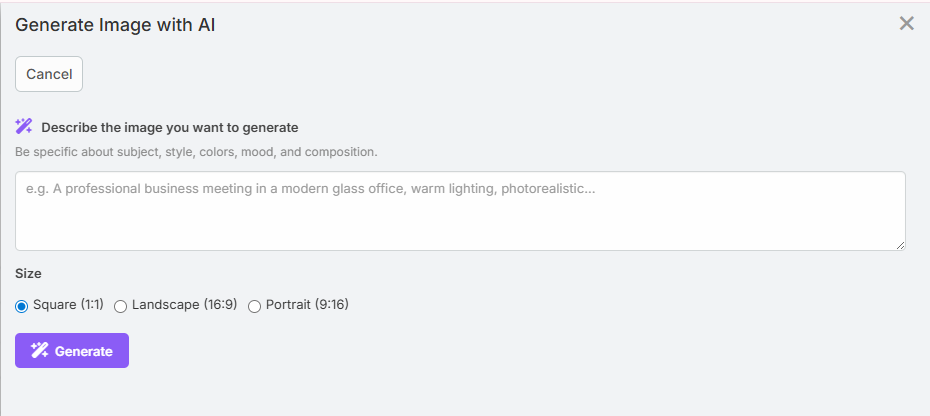
Using Image Generation
- Open the record in edit mode.
- Click the image-generation button.
- Enter a prompt describing the image you want.
- Select a size.
- Click Generate.
- Review the preview.
- Click Use Image.
Available Sizes
The current modal offers:
SquareLandscapePortrait
Provider-specific output dimensions depend on the selected provider and model.
Field Behavior
Image Field
For a single image field, the generated attachment replaces the current image reference.
Attachment-Multiple Field
For an attachment-multiple field, the generated image is appended to the existing attachment list.
Formula Support
Image generation is also available in formula:
eblaAi\generateImage(PROMPT, SIZE, PROFILE_ID)
The function returns the generated attachment ID.
See Formula.
Notes
- Anthropic and Ollama do not provide image generation in the current extension flows
- A provider that supports vision is not always the same as one that supports image generation, so choose the profile carefully
- Prompt quality has a large effect on output quality